Bannerlord · AI Influence · Setup guide How to set up AI Influence for Bannerlord
Five downloads from Nexus Mods, one folder to put them in, then one setting in the game and one in Gaming AI. No mod manager, no script extender, and nothing to downgrade.
- BannerlordLatest version
- TimeAbout 20 minutes
- Game sizeAbout 60 GB
- Mod sizeAbout 120 MB
- Updated
Tick each step off as you finish it. Your place is saved on this device.
What you need
- Mount & Blade II: Bannerlord on SteamOn Windows. Any recent version works.
- A free Nexus Mods accountNexus asks you to log in before it lets you download. A free account is all you need.
- The Gaming AI appIt runs the AI model for AI Influence, so there's no API key to set up. Free to install: get it from the home page. Conversations use Vigor, from 99¢.
Step 1
Before you start
AI Influence is one of the easier AI mods to get running. You download five mods from Nexus Mods, drop each one into the game's Modules folder, and run a small tool so Windows lets the game load them.
The latest version is fine. Unlike the mods for Skyrim and Fallout 4, nothing here needs the game rolled back. The current files on Nexus support Bannerlord v1.4.x and v1.5.x, so you can play on whatever Steam has installed.
Start from a clean game
We recommend a fresh install of Bannerlord before you begin, though unlike our other guides it isn't required. Nothing here overwrites a game file, so a modded install usually takes it fine. We still suggest it because leftovers from an old modded setup are the most common cause of crashes nobody can explain later.
If you're not sure your install is clean, right-click Mount & Blade II: Bannerlord in Steam, go to Properties › Installed Files and use Verify integrity of game files. For a truly fresh start, uninstall, delete the leftover Mount & Blade II Bannerlord folder, then reinstall.
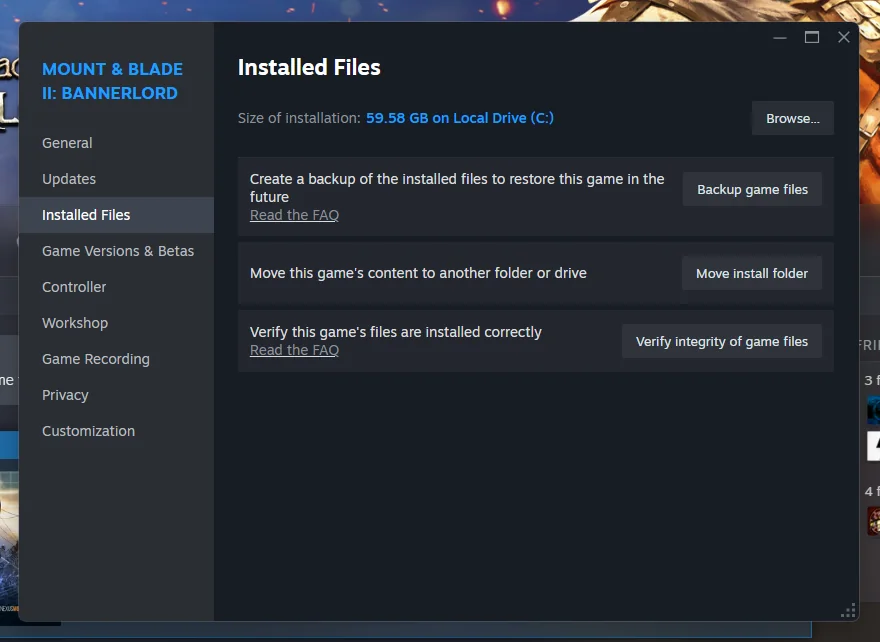
Already modding Bannerlord? You can keep your existing modules. Keep an eye on other mods that touch diplomacy, kingdoms or the campaign map: those are the ones that can conflict with AI Influence. If something behaves oddly later, look there first.
Followed our old Steam Workshop guide? Unsubscribe from AI Influence, Harmony, ButterLib, UIExtenderEx and Mod Configuration Menu v5 on the Workshop first. Otherwise you end up with two copies of each, and the launcher won't know which to load.
Step 2
The four required mods
AI Influence stands on four community libraries. Nearly every Bannerlord mod worth having uses them, so if you've modded the game before, you may already have them.
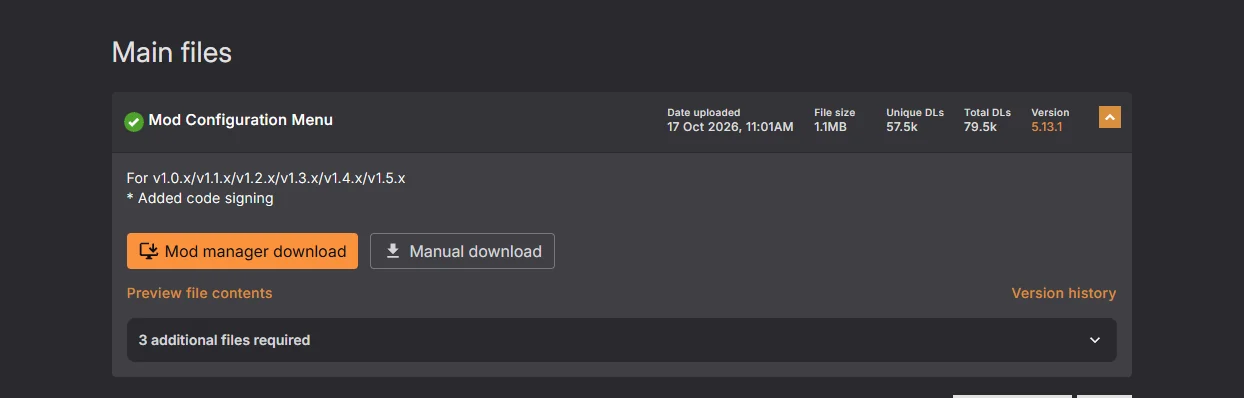
Right-click each card in Gaming AI to open its Nexus page. Under Main files, click Manual download and save the archive somewhere easy to find, like your Downloads folder. You'll put them in place in step 4, and the order doesn't matter.
Manual download, not Mod manager download. The orange button hands the file to Vortex. This guide installs everything by hand, so you don't need a mod manager.
“Additional files required”? Each library lists the others it depends on. They're all in this step, so if Nexus shows you that list, carry on with the download.
Harmony
The patching library the rest are built on. Nothing else in this guide loads without it.
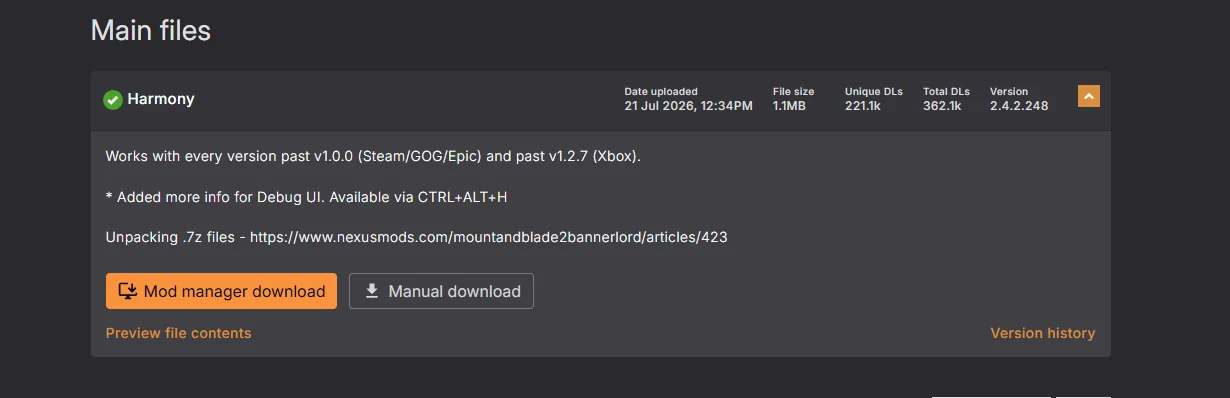
.7z archive, which Windows 11 opens on its own. On Windows 10, use 7-Zip.ButterLib
A shared utility library the BUTR mods rely on.
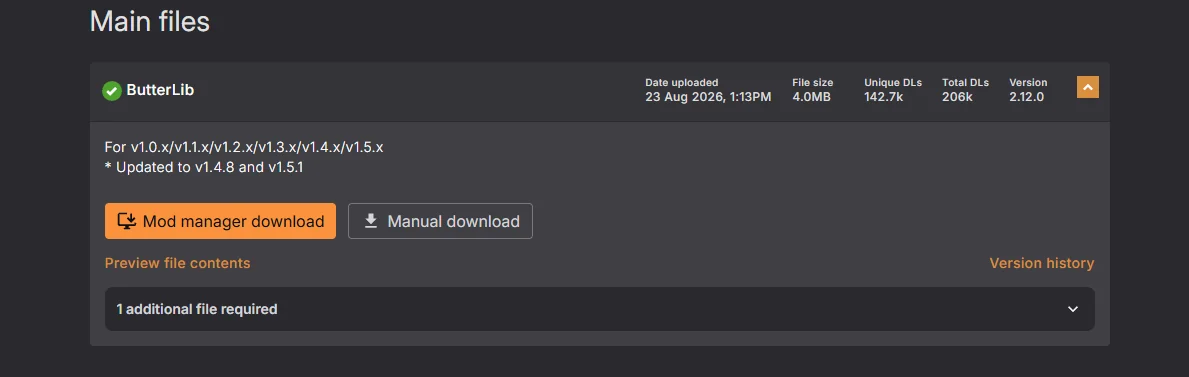
UIExtenderEx
Adds the extra interface pieces mods hook into. It depends on Harmony.
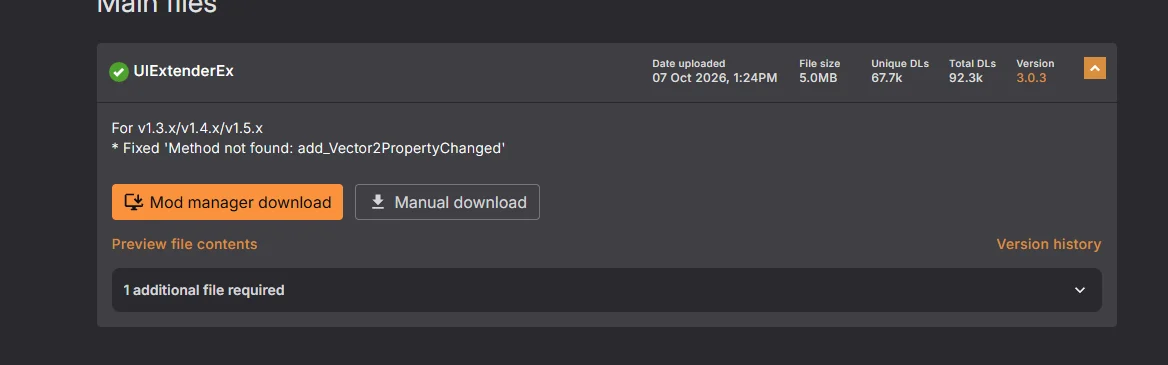
Mod Configuration Menu v5
The in-game settings menu. AI Influence keeps its options here, so it isn't optional.
Step 3
AI Influence
Now the mod itself, the same way: right-click the card in Gaming AI to open its Nexus page, then use Manual download under Main files.

It's around 109 MB, the biggest of the five. Make sure it has finished downloading before you move on.
Step 4
Install into the Modules folder
Every Bannerlord mod lives in its own folder inside the game's Modules folder. To open it, right-click Mount & Blade II: Bannerlord in Steam, choose Manage › Browse local files, then open Modules. On a default Steam install that's:
C:\Program Files (x86)\Steam\steamapps\common\Mount & Blade II Bannerlord\Modules
Extract each download into it
Open each of the five archives and copy the mod's folder into Modules. If an archive has a Modules folder at the top, open that and copy what's inside it, so you don't end up with a Modules folder inside Modules.
When you're done, these five folders should sit directly in Modules, next to the game's own (Native, SandBox, StoryMode and the rest):
AIInfluenceBannerlord.HarmonyBannerlord.ButterLibBannerlord.UIExtenderExBannerlord.MBOptionScreen– that's Mod Configuration Menu v5
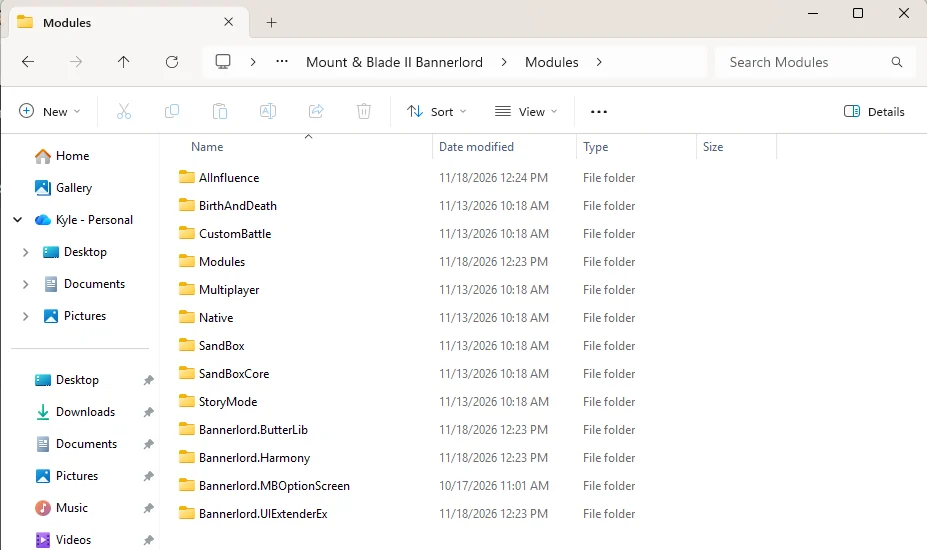
One level deep, no more. Open any of the five folders and you should see SubModule.xml straight away. If you see another folder with the same name instead, the mod is nested one level too deep and the launcher won't find it. Move the inner folder up into Modules.
Updating later. Nexus doesn't update mods for you. When a new version comes out, download it the same way, delete the mod's old folder from Modules and put the new one in its place. Then run step 5 again.
Step 5
Unblock the DLLs
Windows quietly marks files that came out of a downloaded archive as untrusted. Bannerlord then refuses to load the DLLs inside those modules and throws a DLL error on launch, usually naming a file that's sitting right there in the folder. Unblock DLLs clears that mark on everything at once, so run it now, before the first launch.
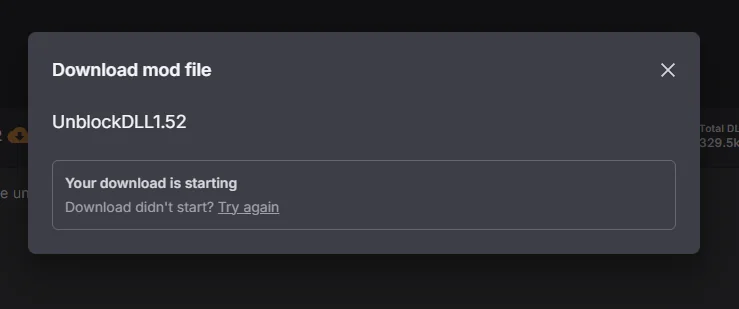
Use Manual download. The file is tiny, so it arrives instantly.
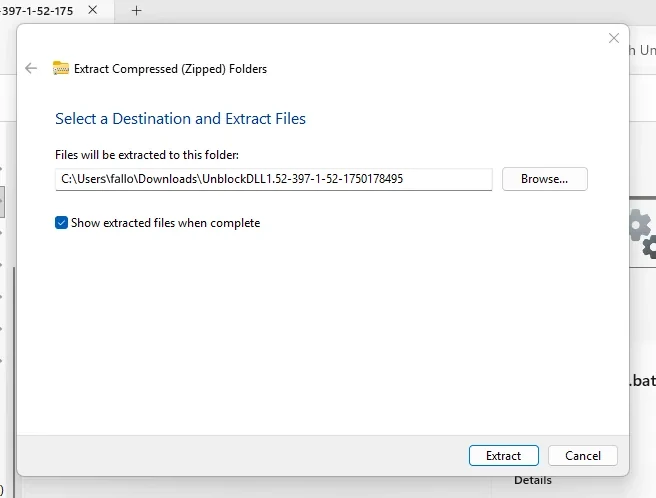
Extract it first
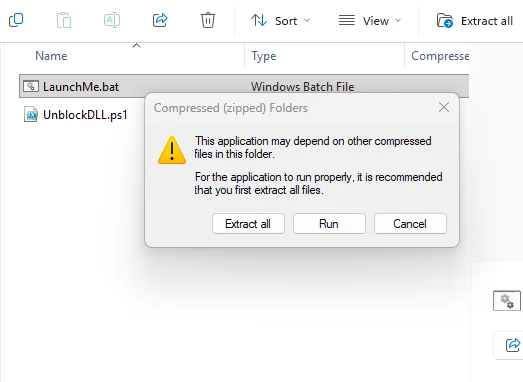
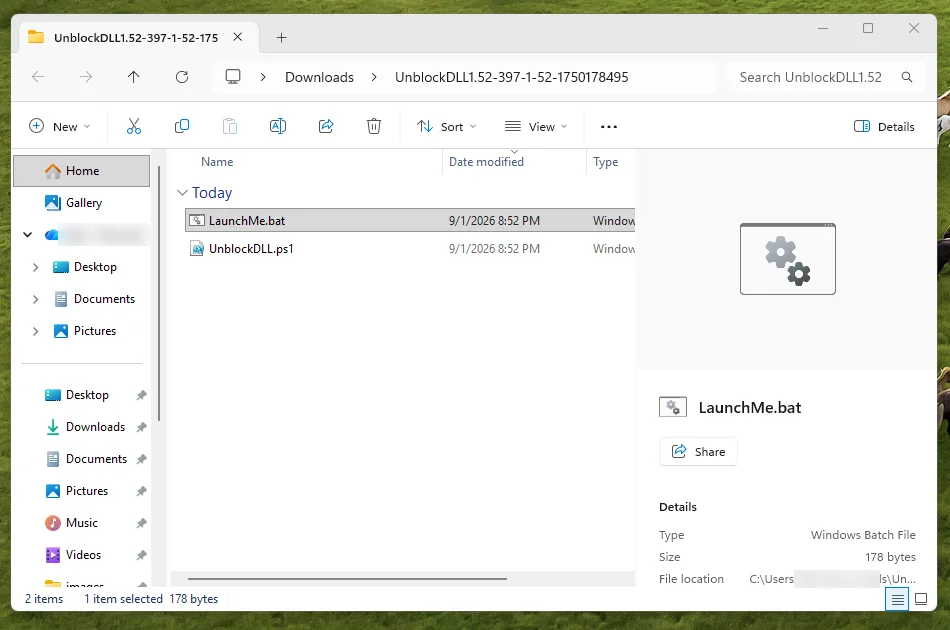
The download holds two files, LaunchMe.bat and UnblockDLL.ps1. The script has to run from an extracted folder, not from inside the zip. Either:
- Extract the folder yourself, then run
LaunchMe.batfrom the extracted copy, or - Double-click
LaunchMe.batinside the zip. Windows warns that it may depend on other files in the folder; click Extract all, then run it from the new folder.
Extract it anywhere you like. Your Downloads folder is fine. Unlike the mods, this one doesn't go in Modules, and you can delete it when you're done.
Run it
Run LaunchMe.bat. Windows says the publisher couldn't be verified. That's normal for an unsigned batch file, and it's safe: click Run.
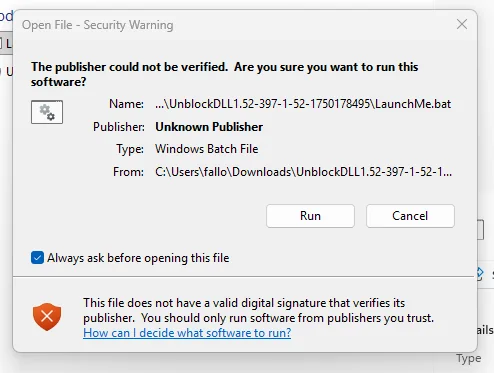
Expect a second prompt. The script needs administrator rights to clear the block, so Windows asks you to confirm that too. Say yes. Without it, the tool finds nothing it's allowed to change and closes again.
An Administrator: Windows PowerShell window opens with MODULE UNBLOCK DDL v1.52 across the top and works through your modules. It lists what it unblocked; if it says No files currently locked. Everything ok, Windows never flagged anything, which is a perfectly good result too. Either way, press Enter to close it.
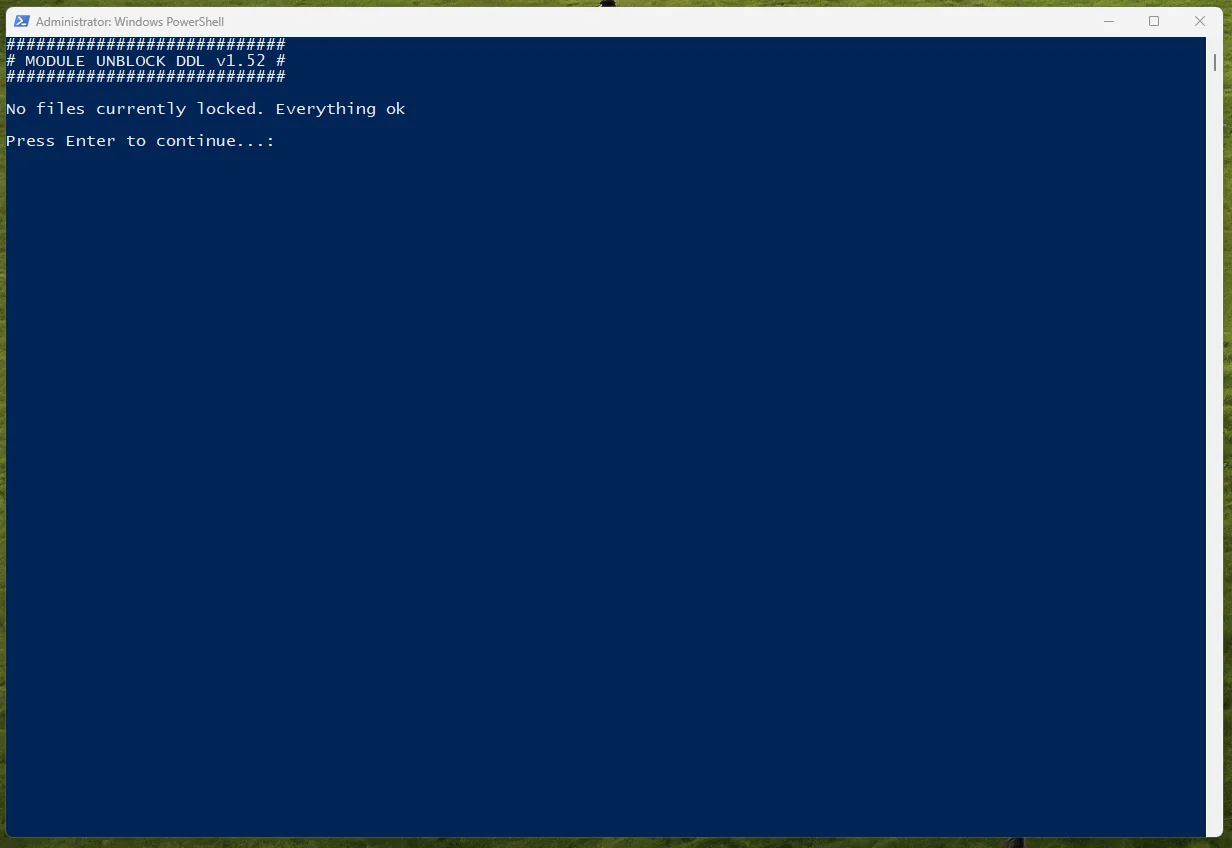
DDL or DLL? The banner says DDL. That's a typo in the script; it's unblocking your DLLs.
Run it after every install or update. Any time you add or replace a module from Nexus, running this afterward takes five seconds and rules the problem out. Keep the extracted folder around so it's handy.
Step 6
Gaming AI and launching the game
Start the game, change one setting inside it, then point Gaming AI at the same place. That's the whole of it.
Run the game
Start Bannerlord from Steam the way you normally would. The launcher opens on its Mods tab. Check everything is ticked: the four libraries at the top, the TaleWorlds modules below them, and AIInfluence at the very bottom. The version numbers next to the libraries should match the files you downloaded.
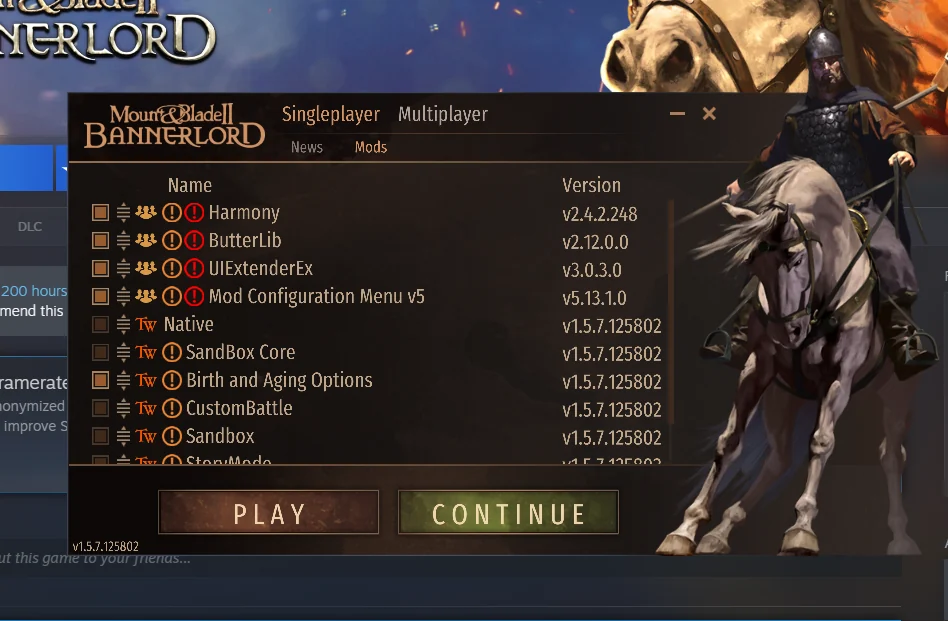
Scroll down to check the last one. AIInfluence sits underneath all the TaleWorlds modules, so it's easy to miss.
Ticked, not just listed. A mod listed here is installed; the checkbox is what loads it. If AIInfluence is in the list but unticked, the game starts perfectly and the mod simply isn't there.
Not listed at all? Its folder isn't where the launcher looks. Go back to step 4 and check it sits directly in Modules.
Hit PLAY and you'll get a CAUTION window listing version mismatches between the mods. That's expected and safe. Click Confirm and carry on.
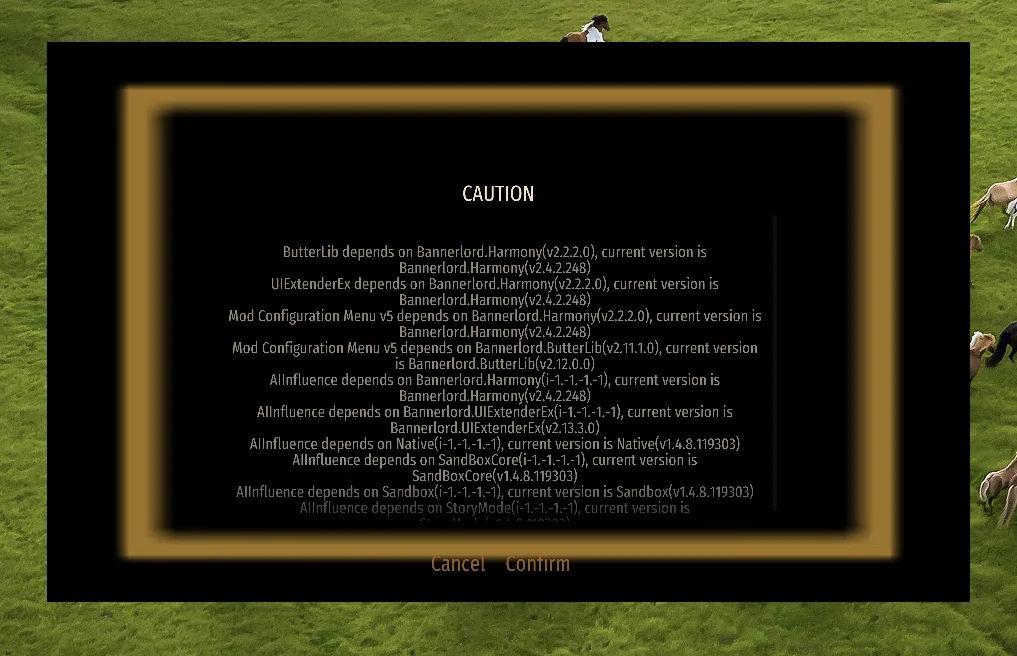
This warning is normal. The launcher has noticed the libraries were built against slightly older version numbers than the ones you have. They're backward compatible, which is why the mods list a minimum version rather than an exact one. You'll see this window every time you launch.
Point AI Influence at Gaming AI
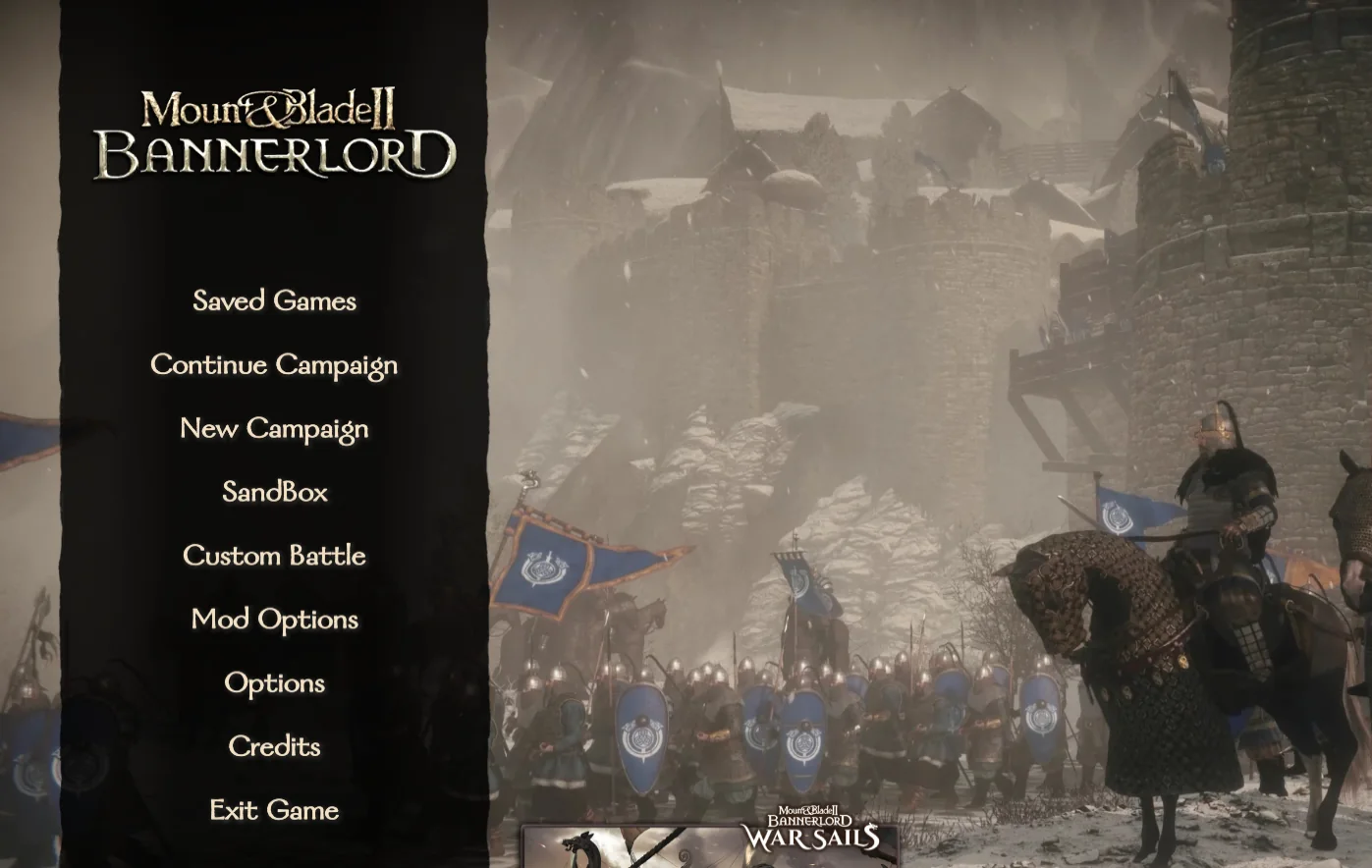
From the main menu, open Mod Options. This is the Mod Configuration Menu from step 2, and it's where AI Influence keeps its settings.
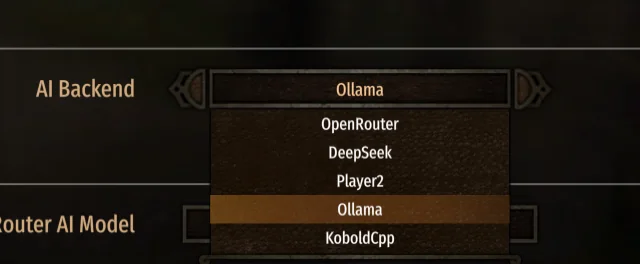
Open AI Influence, then API Settings, then Main Settings. The setting you want is AI Backend.
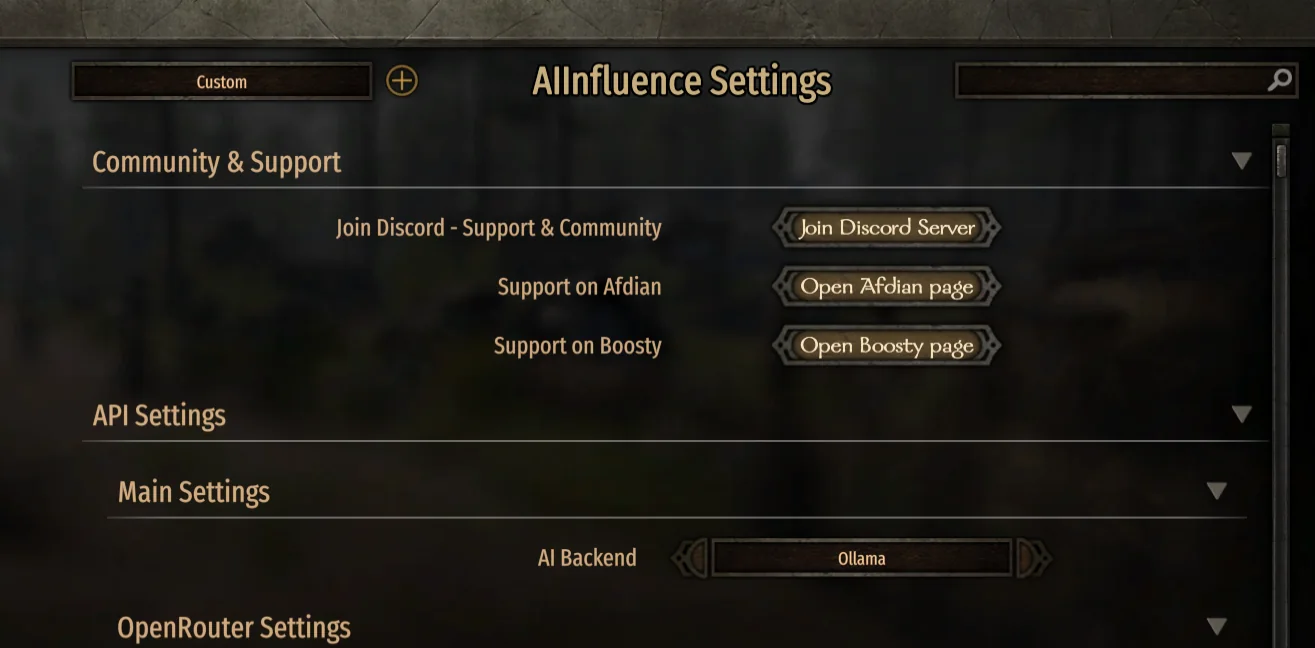
Click through it and choose Ollama. AI Influence can talk to Gaming AI over Ollama or Kobold. The choice makes no difference to performance or to your Vigor; all that matters is that the game and Gaming AI are set to the same one. We use Ollama for the rest of this guide. Leave the other settings alone.
Select the port in Gaming AI
Open Gaming AI, go to Ports and click Use this port on the Ollama card, port 11434. The card switches to In use, and the top of the page shows 11434 as the active port with Server is now running on port 11434 underneath.
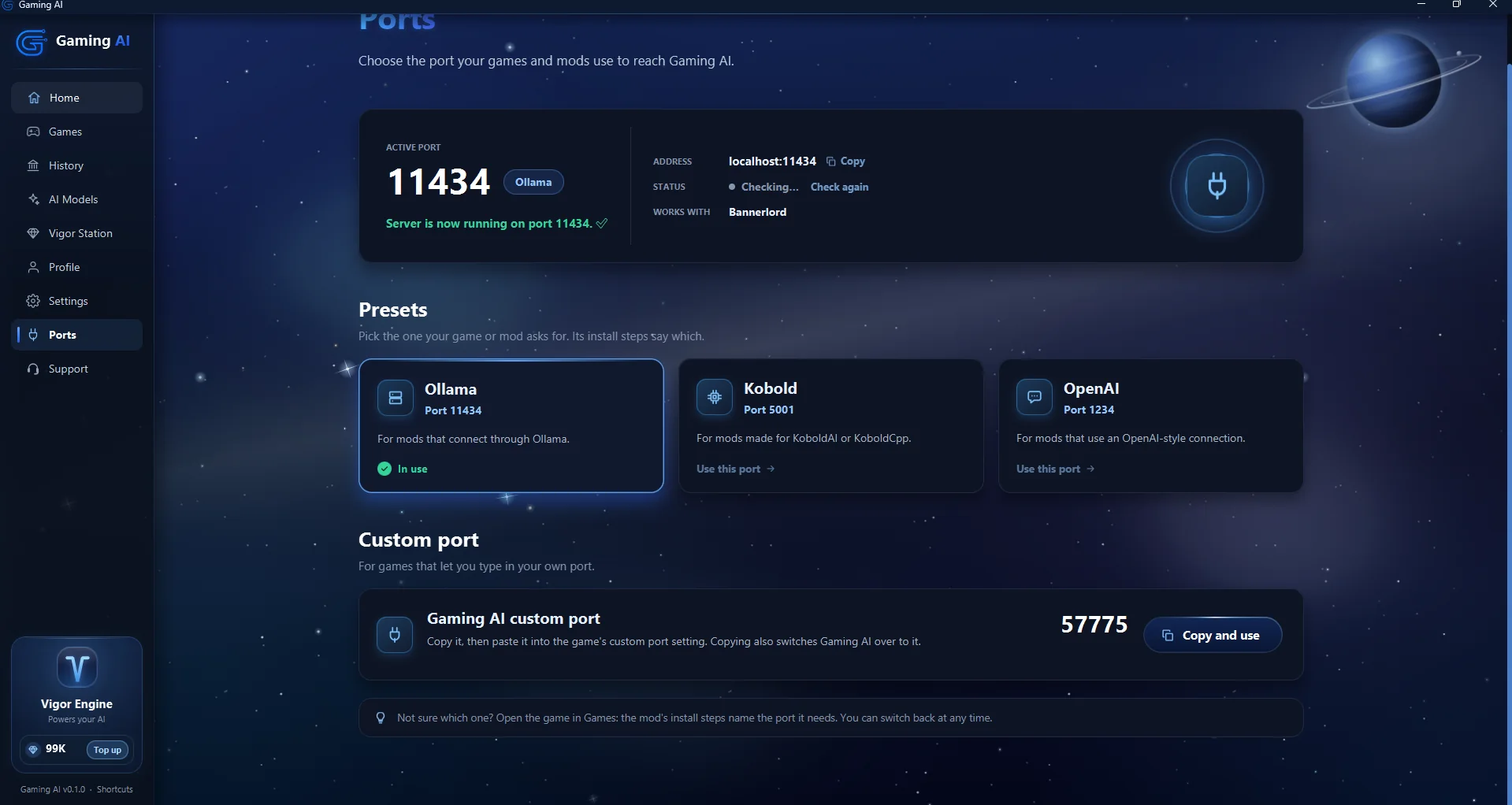
They have to match. Ollama in the game means Ollama in Gaming AI. If you'd rather use Kobold, pick KoboldCpp as the AI Backend in the game and click Use this port on the Kobold card, port 5001, in Gaming AI. Everything else is identical.
Load a model
Open the AI Models page in the sidebar and load the model you want. Start with a budget model to test your setup without spending much Vigor, then switch to a balanced model for the rest of your playthrough once everything works.
New to Gaming AI? Grab the 99¢ pack and try a few models. They behave very differently in conversation, and it's worth finding one you like before you commit to a long campaign. Keep Gaming AI open the whole time you play.
Set up your world and your character
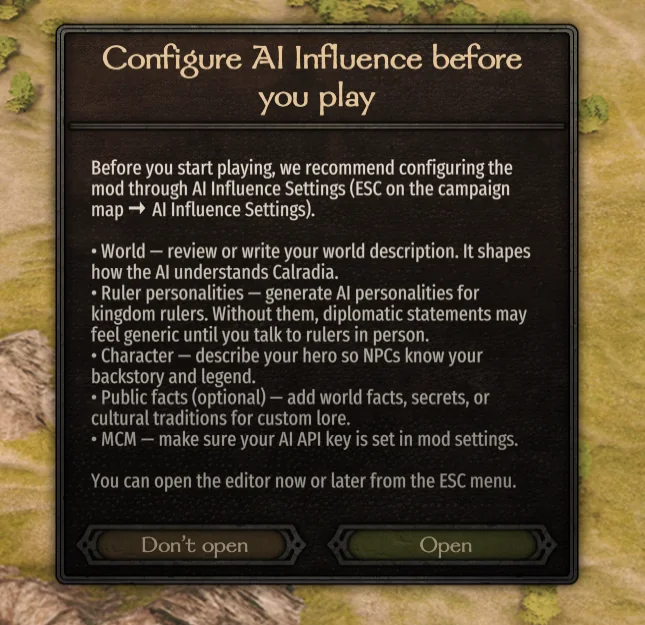
Make your character and start moving around the campaign map, and AI Influence offers to open its settings editor. Click Open to go straight there, or Don't open to get on with playing. You can reach it any time from the campaign map with Esc › AI Influence Settings.
The editor is where the mod's understanding of your world lives, across five tabs: World, Character, NPC, Events and Service.
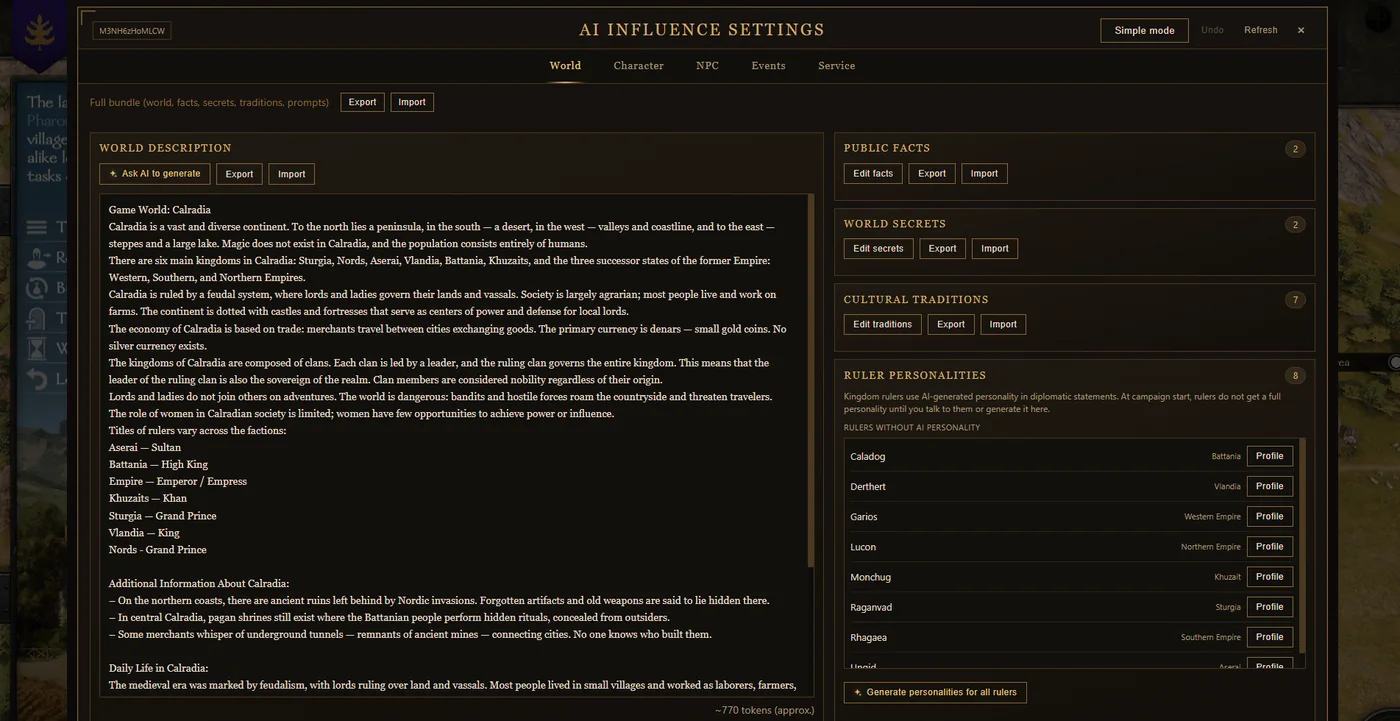
On a first playthrough, two parts are worth your attention:
- World, the world description on the left. This is what the AI knows about Calradia: the geography, the six kingdoms, the feudal system, the currency, the titles each faction gives its ruler. Public facts, world secrets and cultural traditions sit alongside it.
- Ruler personalities, down the right-hand side. Rulers begin a campaign without one, and until they have one their diplomatic statements read generically. Generate personalities for all rulers does the whole list in one go.
The Character tab is worth a visit too. It's where you describe your own hero, so NPCs know your backstory and reputation instead of treating you as a stranger.
Running a total conversion? This is the page to change. The world description is written for Calradia, so if you're on a different map with different factions, rewrite it here and the AI will talk about your world instead.
Longer descriptions cost a little more. Everything on this page goes along with each request. The counter under the world description shows its size, around 770 tokens by default, so a much longer world costs slightly more Vigor per exchange.
You can skip all of it: the defaults are already written, and the mod plays well out of the box. Keep Gaming AI open with your model loaded, and AI Influence takes it from there.
That's everything
Go find a lord and open negotiations in your own words. We hope the guide was easy to follow, and that you have a great campaign.
Setting up another game? See all setup guides.
Troubleshooting
The problems people hit most, and what fixes them.
AI Influence isn't in the game. What did I miss?
Check the launcher's Mods tab before you press Play. AIInfluence sits at the very bottom of the list, under the TaleWorlds modules, and it has to be ticked, along with Harmony, ButterLib, UIExtenderEx and Mod Configuration Menu v5. If it isn't listed at all, its folder isn't directly inside the game's Modules folder: open Modules\AIInfluence and check SubModule.xml is right there, not in another folder inside it.
The launcher lists a mod twice.
You have a Steam Workshop copy as well as the one in Modules. Unsubscribe from the Workshop versions of AI Influence, Harmony, ButterLib, UIExtenderEx and Mod Configuration Menu v5, then restart the launcher.
The launcher shows a CAUTION window about versions. Is something broken?
No. The libraries were built against slightly older version numbers than the ones you have, and they're backward compatible. Click Confirm. You'll see this window every time you launch.
Lords don't answer, or replies never arrive.
The AI Backend in AI Influence's settings has to match the port selected in Gaming AI: Ollama with the Ollama card (11434), or KoboldCpp with the Kobold card (5001). Gaming AI also has to stay open with a model loaded.
I get a DLL error when I start the game.
Windows marks files from downloaded archives as untrusted, and Bannerlord refuses to load them. Run Unblock DLLs as described in step 5, then start the game again. Do it again after you add or update any module.
Rulers' diplomatic statements all sound the same.
Rulers start a campaign without personalities. Open AI Influence Settings from the campaign map with Esc, go to the World tab and click Generate personalities for all rulers.
Does a longer world description cost more?
Slightly. Everything in the settings editor goes along with each request, so a much longer world description costs a little more Vigor per exchange. The default is around 770 tokens.
Will a Bannerlord update break AI Influence?
Usually not. The current files support Bannerlord v1.4.x and v1.5.x, and there's nothing to downgrade. After a big game update, check each mod's Nexus page for a newer file, swap the old folder in Modules for the new one, and run Unblock DLLs again.
Which AI model should I use?
Start with a budget model to check everything works, then switch to a balanced model for your playthrough. Models behave very differently in conversation, so it's worth trying a few with the 99¢ pack.
Still stuck?
Supporters get hands-on help: we'll work through mod conflicts and broken downloads with you, one to one. Not a supporter? Write to us anyway if anything in this guide looks outdated or broken.
Thanks to MFive, who makes AI Influence. If it adds to your campaign, endorse it on its Nexus page.
Gaming AI is an independent service and is not affiliated with, endorsed by or connected to TaleWorlds Entertainment or any mod author. AI Influence, Harmony, ButterLib, UIExtenderEx, Mod Configuration Menu and Unblock DLLs are made and maintained by third parties. Game and mod names are the trademarks of their respective owners and are used here only to describe compatibility.