Fallout 4 · Mantella · Setup guide How to set up Mantella for Fallout 4
Every step from a clean Fallout 4 to your first unscripted conversation in the Commonwealth: the downgrade, the script extender, the mods Mantella needs, its installer, and the two settings in Gaming AI.
- Fallout 41.10.163
- Time1 to 2 hours
- Game sizeAbout 30 GB
- Mod size4 GB
- Updated
Tick each step off as you finish it. Your place is saved on this device.
What you need
- Fallout 4 on SteamInstalled somewhere other than Program Files.
- Windows 10 or 11Mantella doesn't run anywhere else.
- Mod Organizer 2With a portable Fallout 4 instance. Set it up here.
- The Gaming AI appIt runs the AI model for Mantella, so there's no API key to set up. Free to install: get it from the home page. Conversations use Vigor, from 99¢.
Step 1
Before you start: Mod Organizer 2
This guide assumes you already have Mod Organizer 2 installed with a portable Fallout 4 instance, and that you know how to pull a mod down from Nexus into it. If any of that is new to you, start with our Mod Organizer 2 guide and come back here. It takes about ten minutes, and everything below builds on it.
Mod Organizer 2 setup guideInstall it and make your first instanceThat guide covers the whole routine this one leans on:
- Installing Mod Organizer 2 somewhere outside Program Files
- Creating a portable instance with Fallout 4 selected
- Leaving all three profile settings checked, Automatic archive invalidation especially
- Downloading a mod from Nexus and activating it in the left pane
From here on, whenever this guide says to install a mod, it means that same routine: the Files tab on Nexus, Mod manager download, double-click it in the Downloads tab, tick the checkbox.
You should be looking at a clean instance like this before you go any further:
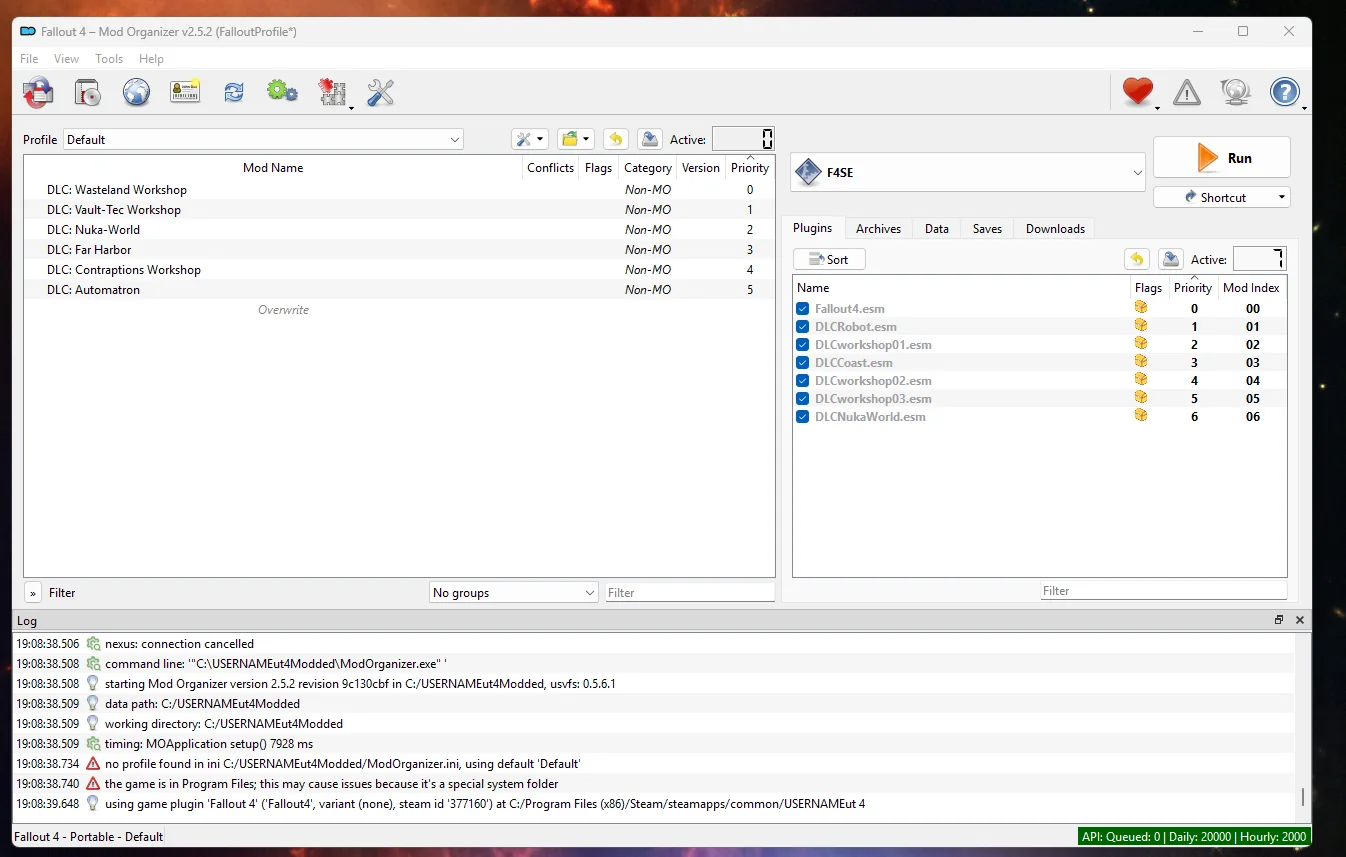
Already modding Fallout 4? You can use your existing instance. Just make sure archive invalidation is on, since Mantella ships loose files. And if you're already running an older, downgraded mod list, you can skip step 2.
Start from a clean game
We strongly recommend a fresh install of Fallout 4 before you begin. Mantella runs on the script extender and loads a lot of loose files, and leftovers from an old modded setup are the most common cause of crashes nobody can explain later. A clean game costs you one download and saves you an afternoon of troubleshooting.
If you're not sure your install is clean, right-click Fallout 4 in Steam, go to Properties › Installed Files and use Verify integrity of game files. For a truly fresh start, uninstall, delete the leftover Fallout 4 folder, then reinstall.
Keep the game out of Program Files
Steam installs games under C:\Program Files (x86)\Steam by default, and that's the one place this setup won't work. Windows protects Program Files, so Mod Organizer 2, the script extender and Mantella can't reliably write the files they need there. The game either won't start or starts without your mods.
To check: right-click Fallout 4 in Steam, choose Manage › Browse local files, and look at the folder path at the top of the window. If it starts with C:\Program Files or C:\Program Files (x86), move it. Anywhere else, like C:\SteamLibrary or D:\SteamLibrary, is fine.
To move it: in Steam, open Settings › Storage and add a new library folder on a drive outside Program Files (Steam names it SteamLibrary). Then select your current library, tick Fallout 4, click Move and pick the new one. Steam moves the files over; nothing is downloaded again.
Move it before you make your Mod Organizer 2 instance. The instance remembers where the game was. If you've already made one, create it again after the move so it points at the new folder.
Step 2
Downgrade Fallout 4
Bethesda pushed an update to Fallout 4 that broke compatibility with the script extender and most of the mods built on it. Mantella runs on the older build, so before going any further you roll the game back to it.
This step isn't optional. On an up-to-date copy of Fallout 4, Mantella won't run at all.
This one is a tool, not a mod. Download it with your mod manager or manually, then open the download in File Explorer and extract it.
In the extracted folder, run Downgrade By Downloading Depots.bat, the first file below the Assets folder.
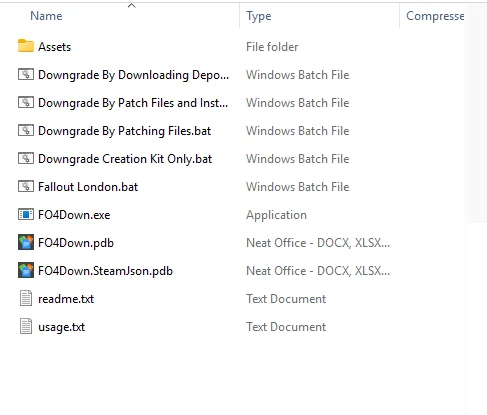
The tool opens in a command window. Accept the prompt, then sign in to Steam through it when it asks. On a stock copy of the game it starts right away; ours had already been rolled back, which is why it's asking whether to do it again.
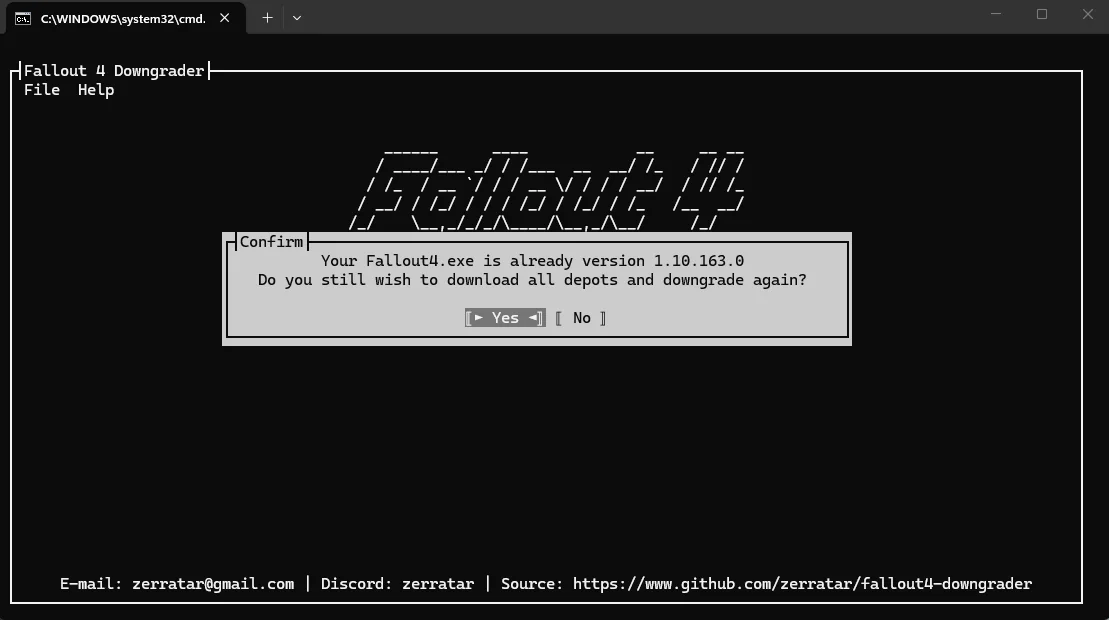
It then downloads the older game files. Expect it to take 30 minutes or more, depending on your connection. Leave it running until it finishes.
Is this safe? Yes. The downgrader signs in to Steam and pulls older official Fallout 4 files straight from Valve's own servers. Your login goes to Steam, not to the tool.
Watch for Steam re-patching. Steam can quietly update Fallout 4 back to the latest version, which undoes all of this. In the game's Steam properties, set updates to Only update this game when I launch it, and launch through Mod Organizer 2 rather than Steam from now on.
Step 3
Address Library and Backported Archive2
With the game rolled back, two mods go in. Both install through Mod Organizer 2 the usual way, and the order matters.
A lookup table that tells script extender plugins where to find what they need inside the game, so plugin authors don't have to rebuild for every patch.
Teaches the older game to read the newer archive format Mantella ships in. It won't work without Address Library above it.
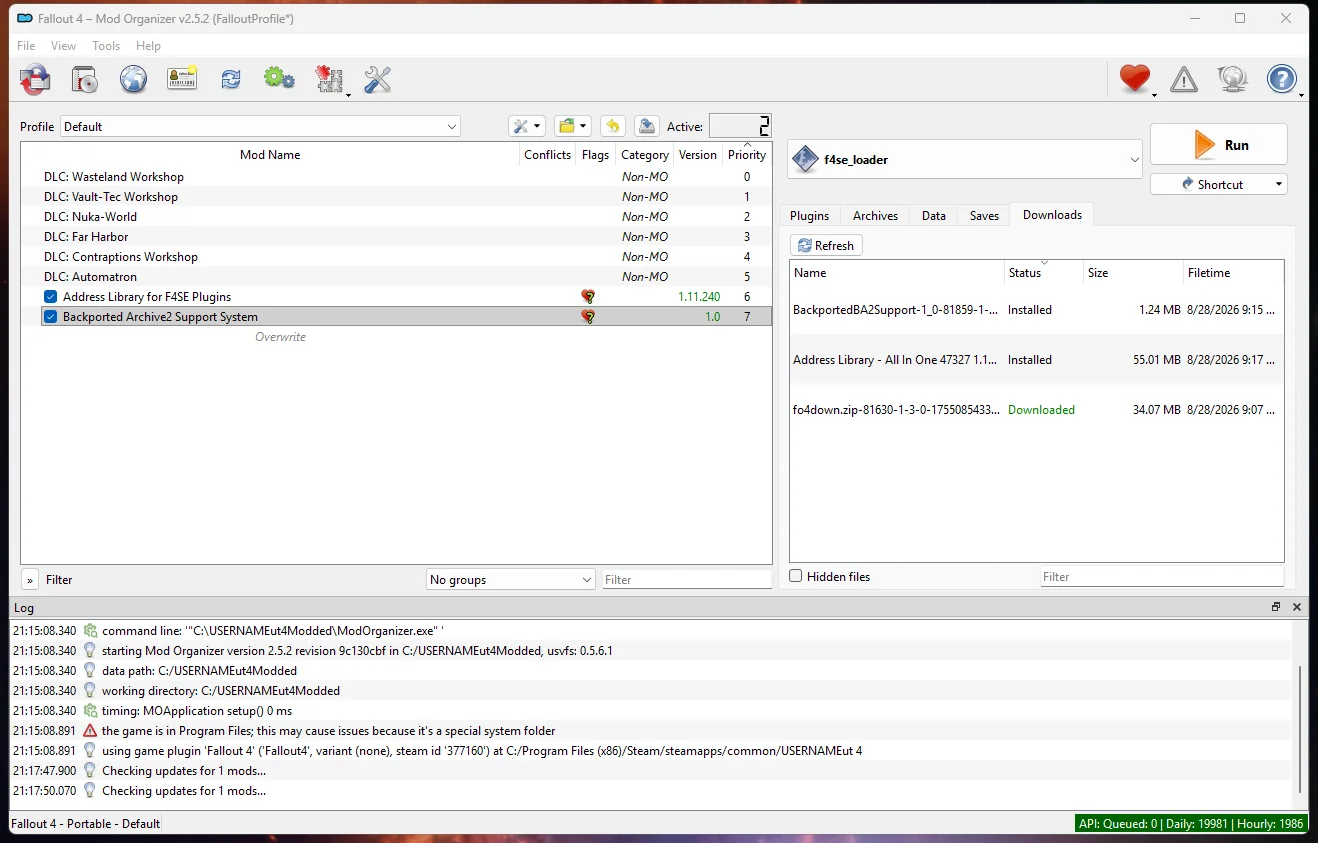
Install both and tick their checkboxes. Your left pane should look like this:
Step 4
F4SE: the Fallout 4 Script Extender
F4SE is the script extender Mantella runs on. Unlike everything else in this guide, it doesn't go through Mod Organizer 2: it goes straight into your Fallout 4 game folder by hand.
Use the version our card links to. F4SE is tied to a specific game build, and grabbing a different one is the fastest way to end up with a game that won't start.
Find your game folder
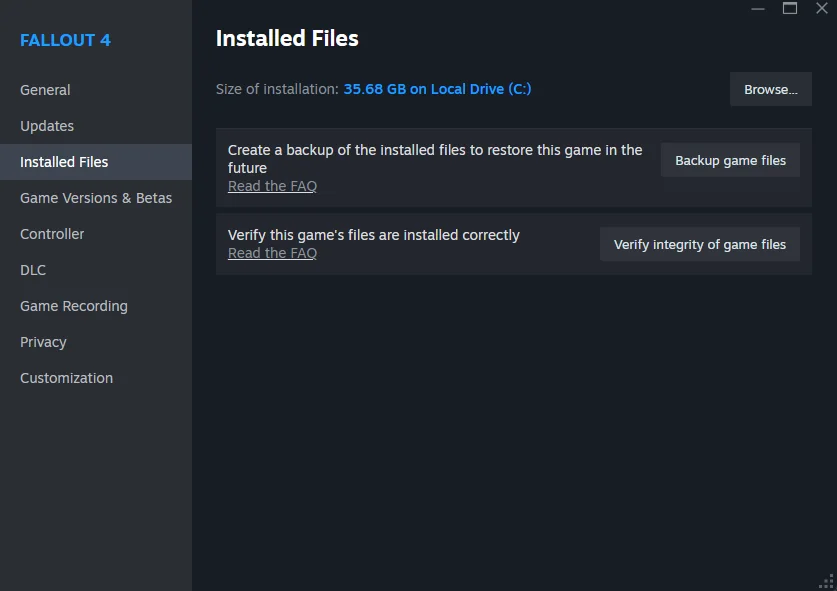
You need the folder that contains Fallout4.exe. The easiest way there is through Steam. Either:
- Right-click Fallout 4 in your library › Manage › Browse local files, or
- Right-click Fallout 4 › Properties › Installed Files › Browse
Drop the files in
Extract the F4SE archive. Inside you'll find the loader, a couple of .dll files and some documentation.
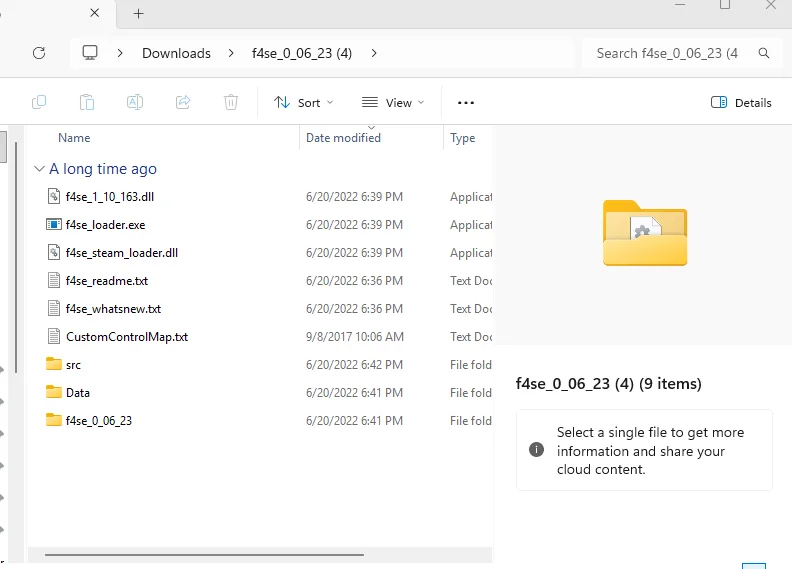
Drag the contents of that folder into your Fallout 4 game folder: the loose files, not the folder itself. When you're done, f4se_loader.exe should be sitting right next to Fallout4.exe.
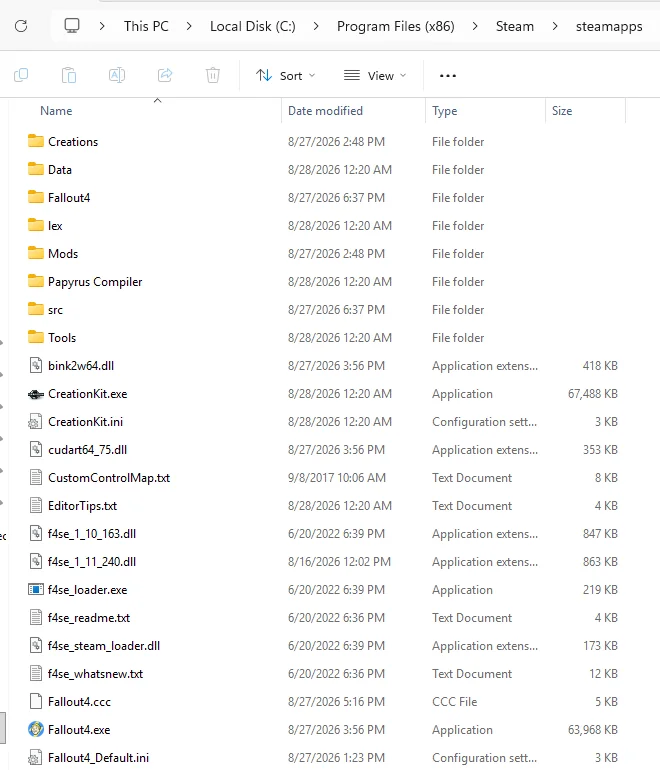
Check the version. The .dll is named after the game version it was built for, here f4se_1_10_163.dll. That has to match the version the downgrader reported.
Overwrite prompts. If Windows asks to replace existing files, say yes. That just means you're replacing an older F4SE.
Add F4SE to Mod Organizer 2
Mod Organizer 2 now needs to launch the game through F4SE instead of the normal Fallout 4 exe, which means adding F4SE to its list of executables.
-
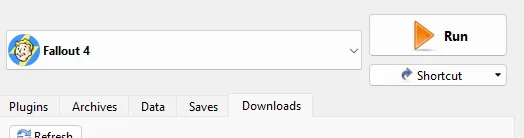
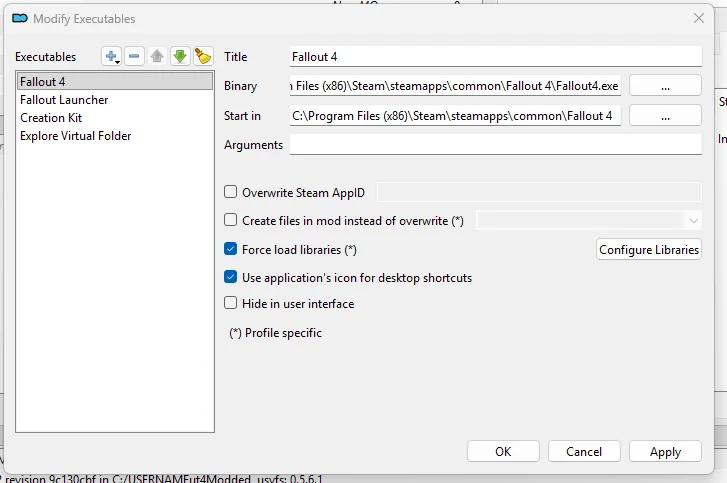
Click the executables dropdown at the top right, the one currently showing Fallout 4, and pick <Edit…>.
-
The Modify Executables window opens on your existing Fallout 4 entry. You're not changing that one; you're adding a new one alongside it.
-
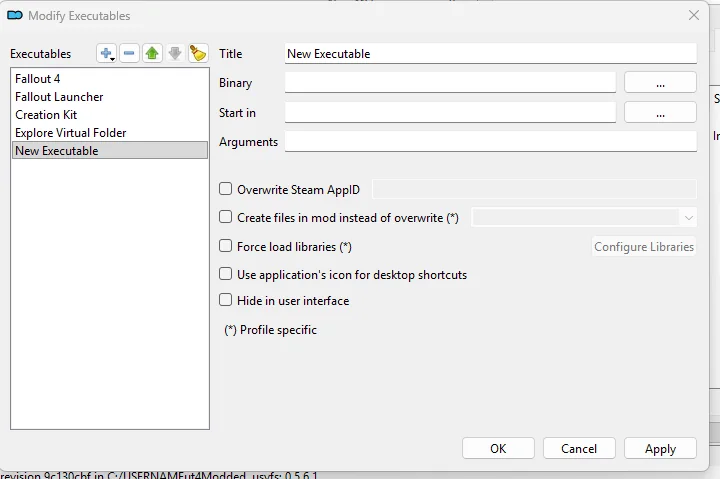
Click the + next to Executables and choose Add empty. You'll get a blank entry called "New Executable".
-
With that entry selected, click the three dots next to Binary and pick
f4se_loader.exefrom your Fallout 4 folder. Give it a title you'll recognize, like F4SE or f4se_loader, then click Apply.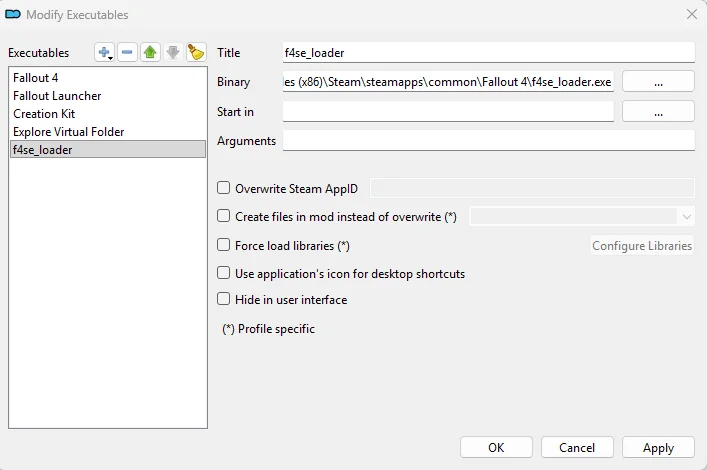
-
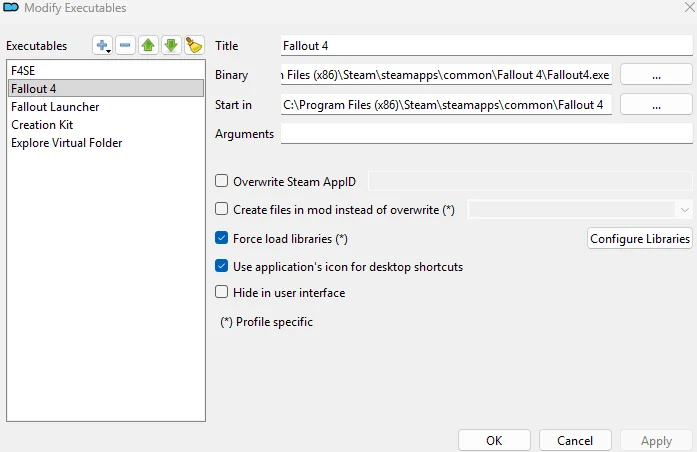
Your new entry now shows up in the list alongside the defaults.
From now on, launch through F4SE
Select your new F4SE entry in the dropdown and use the Run button. That's how you start Fallout 4 from here on.

Don't launch from Steam any more, and don't use the plain Fallout 4 entry in Mod Organizer. Neither loads the script extender, so Mantella simply won't be there when you get in game.
Check that it worked
Select your F4SE entry and hit Run. If Fallout 4 reaches the main menu, the downgrade went through and the script extender is loading. If it crashes on launch or never appears, something in the last three steps didn't take, so sort that out before you carry on.
Step 5
Mantella
Simple Text Field first
One last dependency before the main mod. Mantella uses it for typing to NPCs and changing options in game. Install it through Mod Organizer 2 and tick its checkbox.
Download Mantella
Now install Mantella itself through Mod Organizer 2, the same way as everything else. Be patient with this one: the All-In-One download is about 6 GB.
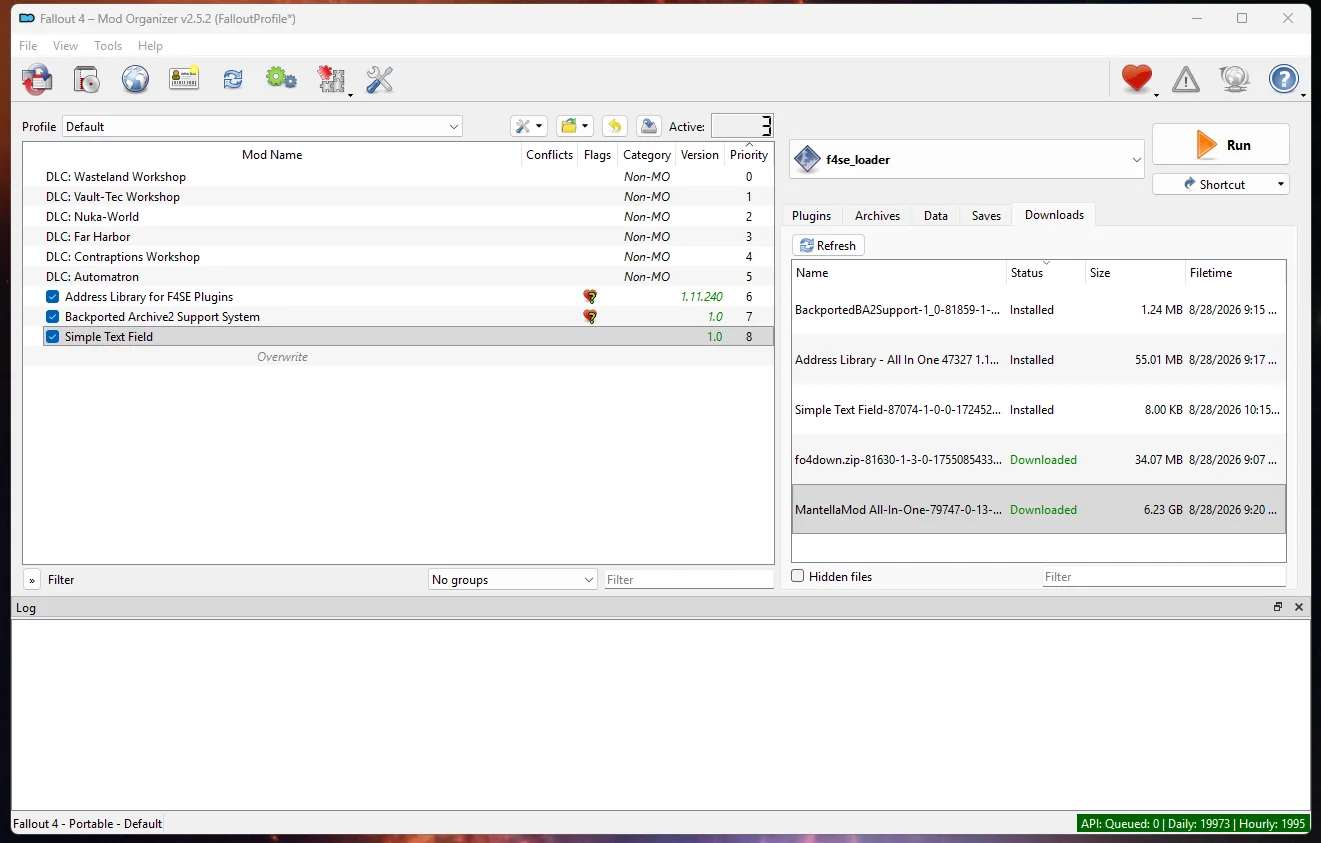
Free up 15 GB first. Between the download and the installed copy, you want at least 15 GB free. Running out partway through is the most common reason this install fails.
The installer
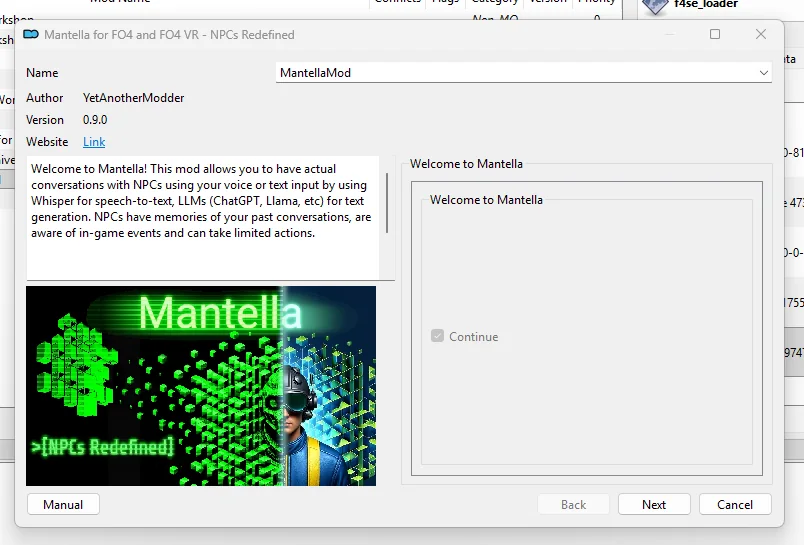
Double-click the download to install it. Instead of installing silently, Mantella opens a FOMOD: a step-by-step installer that asks what you want. Work through it with the options below.
-
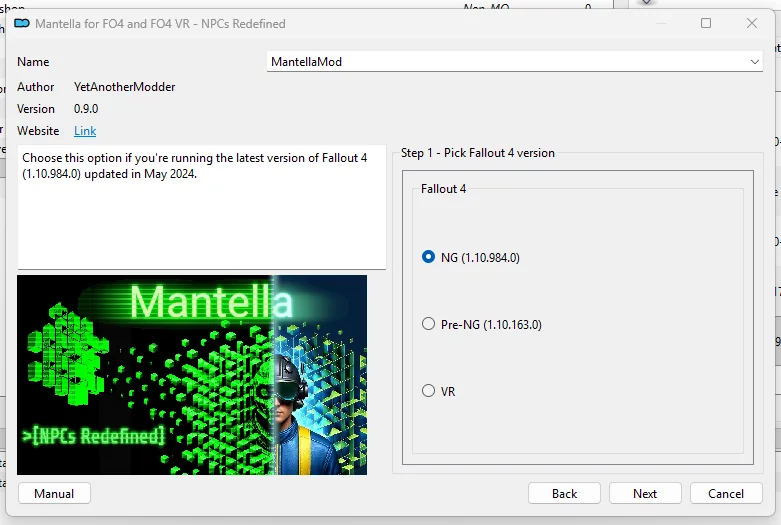
Pick Fallout 4 version: choose NG (1.10.984.0). That's right even though you just rolled the game back. The Backported Archive2 Support System you installed in step 3 is what makes it work. Pre-NG is for older setups without that mod, and picking it here leaves you with missing assets.
-
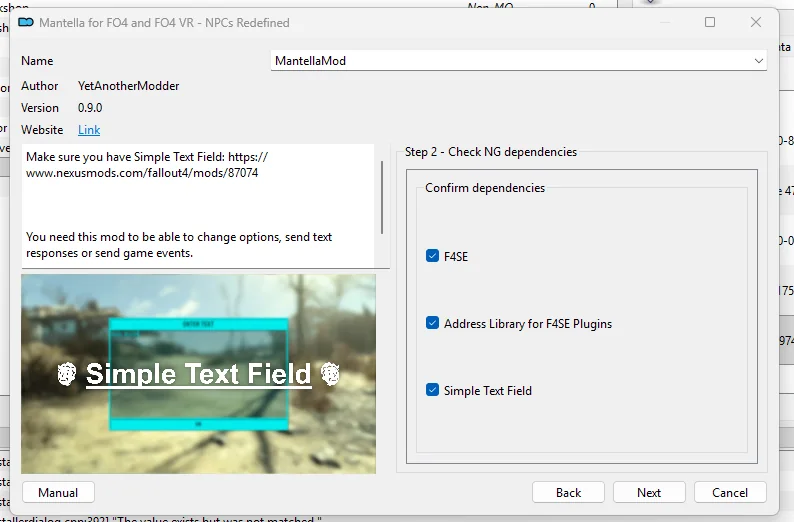
Check NG dependencies: tick all three, F4SE, Address Library for F4SE Plugins and Simple Text Field. You've installed every one of them already.
-
Choose Text-To-Speech: select Piper TTS. It's the default, it covers the campaign and DLC voices, and it runs on your CPU, so it doesn't compete with the game for graphics memory. If you'd rather use XVASynth or XTTS, the panel on the left explains what each one needs.
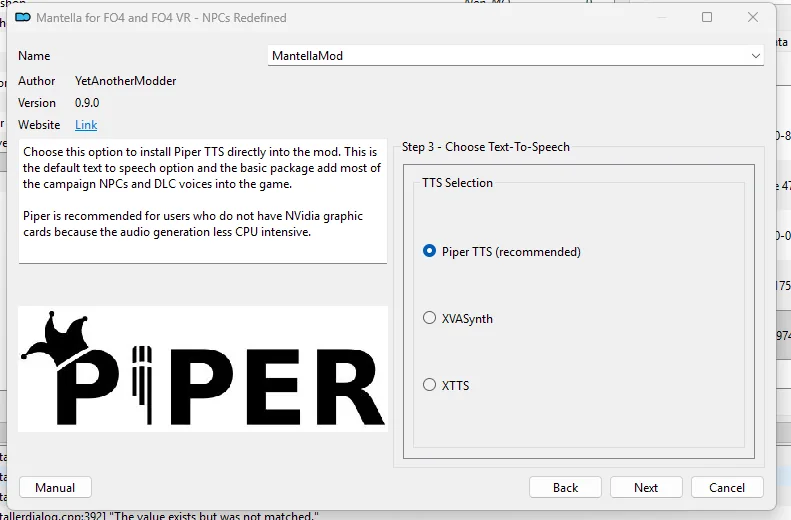
-
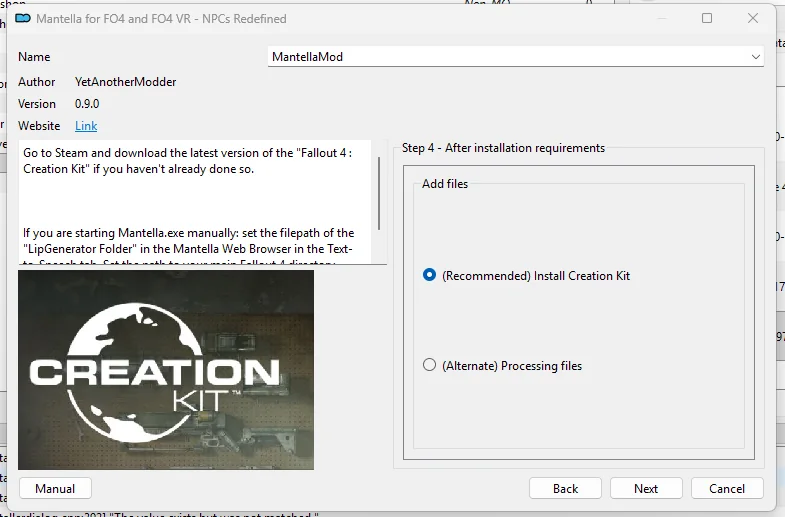
After installation requirements: leave Install Creation Kit selected. Mantella uses it to generate lip sync for the new dialogue.
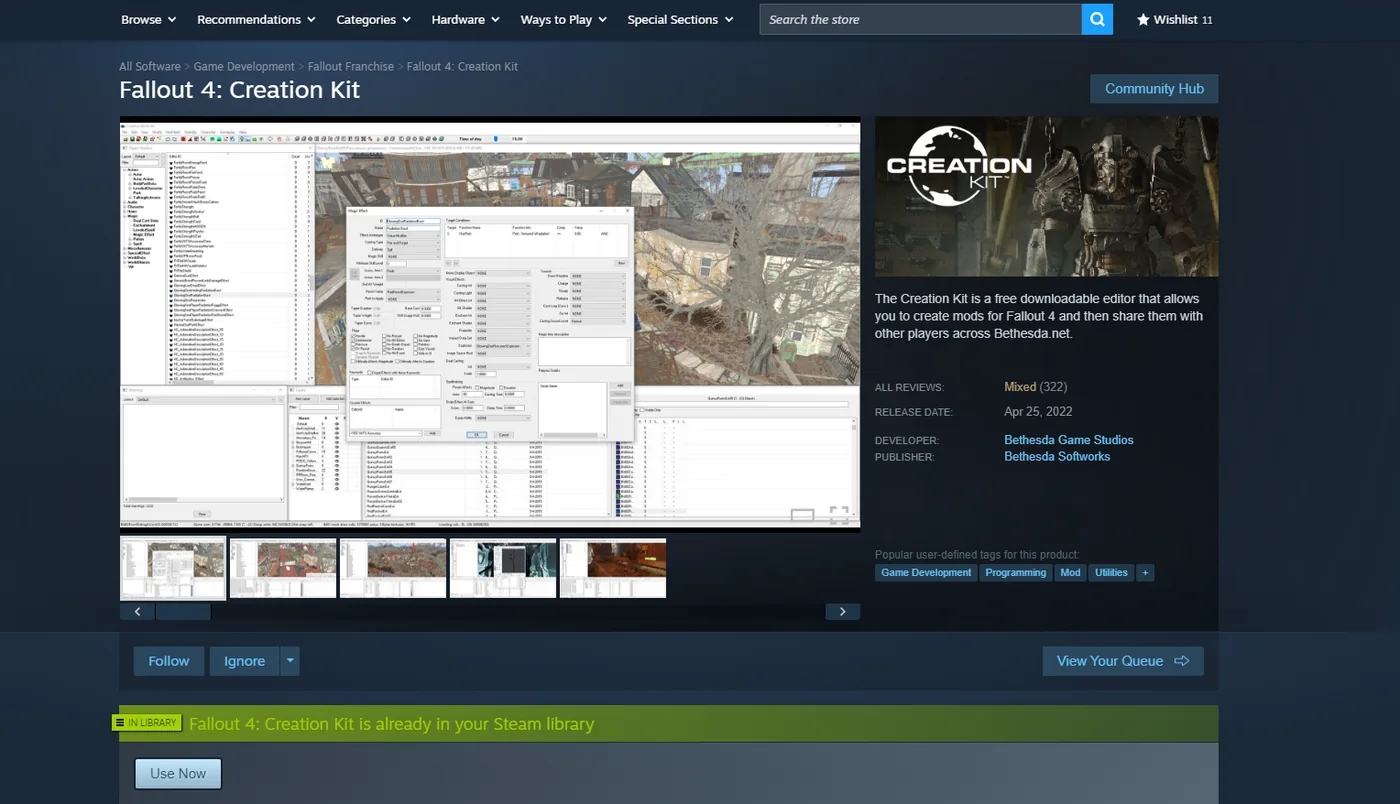
The Creation Kit itself is a separate, free download. In the Steam store, search for Fallout 4: Creation Kit and install it. You only need to do this once.
-
Set up your API key: select (Local) KoboldCpp, then click Install. This is the important one.
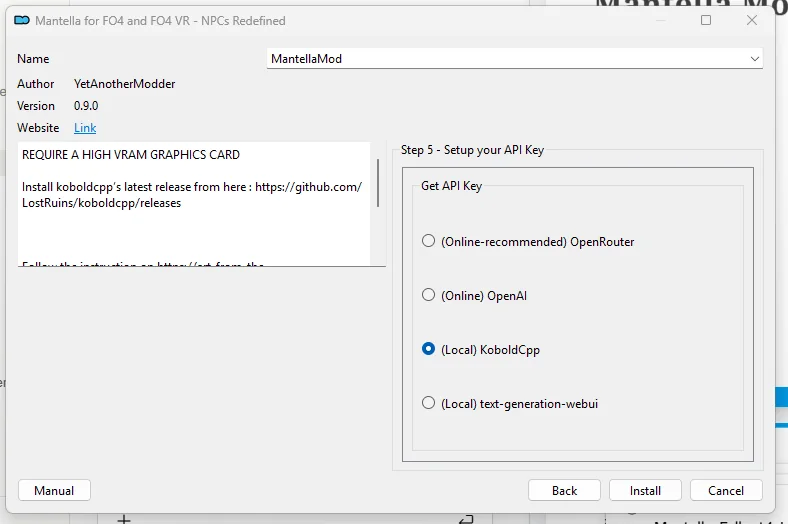
Ignore the VRAM warning. The panel on the left says "REQUIRE A HIGH VRAM GRAPHICS CARD" and points you at installing KoboldCpp yourself. You need neither. Mantella only borrows the Kobold port so it knows where to send its requests; Gaming AI answers on the other end, and nothing runs on your graphics card.
The install starts. It unpacks several gigabytes, so give it time.
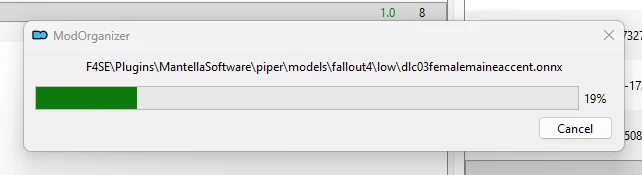
If it fails, open the download and run the installer again. A retry fixes it most of the time. If it fails a second time, check your free disk space before anything else.
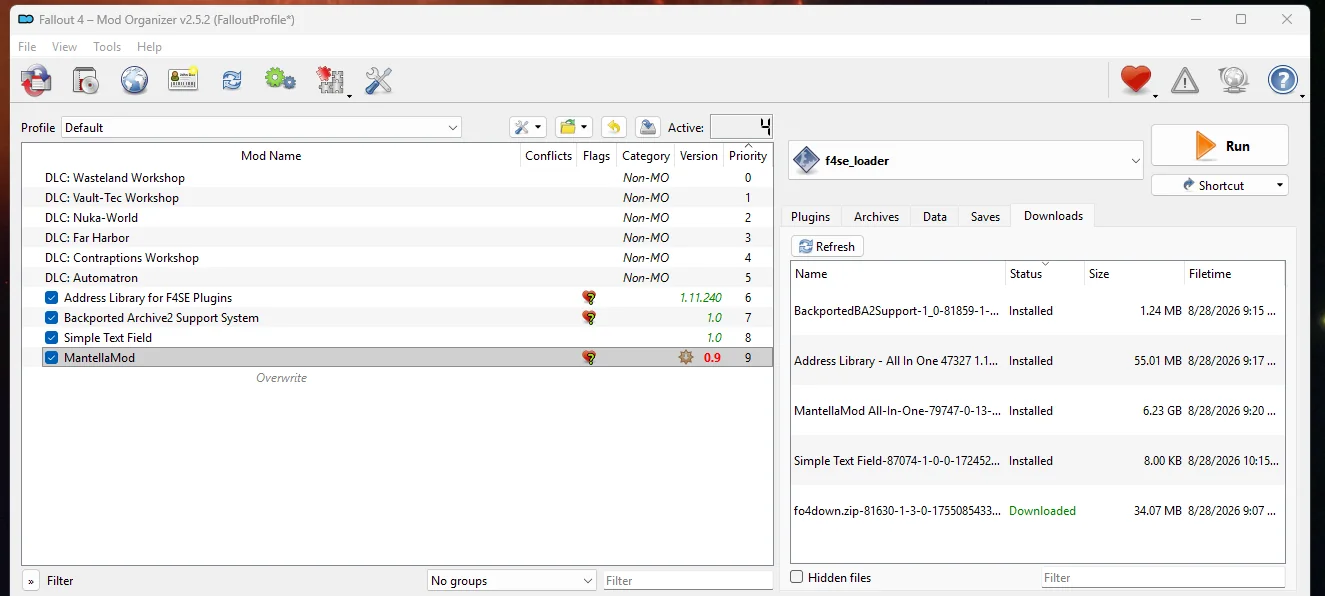
When it finishes, tick MantellaMod in the left pane. Your mod list should now look like this:
Step 6
Gaming AI and launching the game
The hard part's done. Two settings in Gaming AI and you're ready to play.
Select the Kobold port
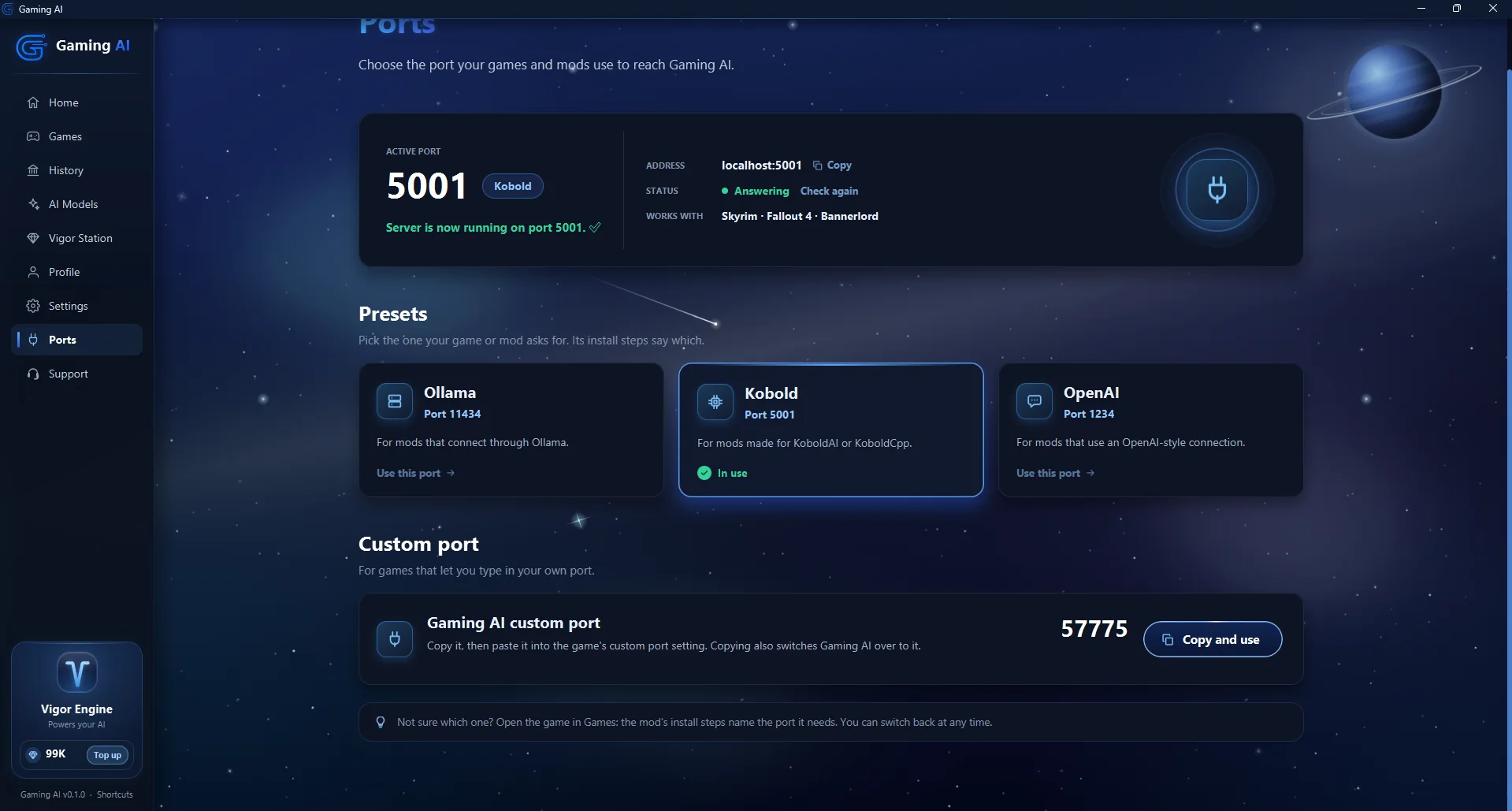
Open Gaming AI, go to Ports and click Use this port on the Kobold card. That matches what you chose in the Mantella installer: Kobold answers on port 5001, and that's where Mantella sends everything. The card switches to In use, and the top of the page shows 5001 as the active port with Answering next to Status.
Load a model
Open the AI Models page in the sidebar and load the model you want. Start with a budget model to test your setup without spending much Vigor, then switch to a balanced model for the rest of your playthrough once everything works.
New to Gaming AI? Grab the 99¢ pack and try a few models. They behave very differently in conversation, and it's worth finding one you like before you commit to a long playthrough.
Run the game
Leave Gaming AI running, then select your f4se_loader entry in Mod Organizer 2 and click Run.
Two windows open. Leave them both alone.
Along with the game, Mantella starts two things of its own:
- A command prompt window. That's Mantella itself running. Leave it open: close it and conversations stop working.
- A browser tab at
localhost:4999, Mantella's own settings page. You don't need to change anything on it.
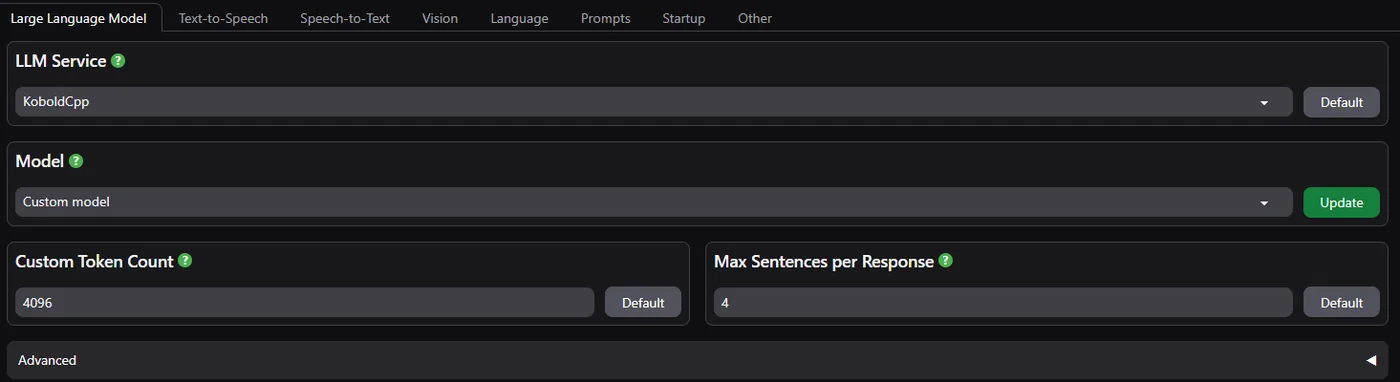
Leave the Model box on "Custom model" and LLM Service on KoboldCpp. Mantella is only asking which model to request from the server it's pointed at, and that server is Gaming AI, which decides for itself which model is loaded. Picking something here doesn't switch models, and changing it can stop Mantella talking to Gaming AI altogether. Your model choice happens on the AI Models page in Gaming AI.
In game
Start a new game and play through the intro. Once you've got your Pip-Boy, you're ready.
That's everything
Go find a settler and ask them something nobody scripted. We hope the guide was easy to follow, and that you have a great time in the Commonwealth.
Setting up another game? See all setup guides.
Troubleshooting
The problems people hit most, and what fixes them.
My game is installed in Program Files. Does that matter?
Yes. Windows protects Program Files, so Mod Organizer 2, the script extender and Mantella can't reliably write the files they need there, and the game either won't start or starts without your mods. In Steam, right-click Fallout 4, choose Manage, then Browse local files, and check the folder path. If it's under Program Files, add a new library folder in Steam's Settings, under Storage, move the game there with the Move button, then create your Mod Organizer 2 instance again so it points at the new folder.
Fallout 4 crashes on launch or never starts. What's wrong?
Almost always a version mismatch. The game has to be on the version the downgrader rolled it back to, 1.10.163, and your F4SE build has to match it: the F4SE file in your game folder should be named f4se_1_10_163.dll. If Steam has updated the game since, run the downgrader again and set Steam to only update Fallout 4 when you launch it.
I'm in game, but pressing R does nothing. Where's Mantella?
Check how you launched. Starting Fallout 4 from Steam, or from the plain Fallout 4 entry in Mod Organizer 2, skips the script extender, so Mantella never loads. Close the game and start it with your f4se_loader entry in Mod Organizer 2, with Gaming AI already running.
Textures or other assets are missing.
In Mantella's installer, the game version has to be NG (1.10.984.0), and Backported Archive2 Support System has to be installed and ticked, below Address Library. Picking Pre-NG, or skipping Backported Archive2, leaves the older game unable to read Mantella's files. Run the Mantella installer again with NG selected.
NPCs answer, but their mouths don't move.
Mantella uses the Fallout 4 Creation Kit to generate lip sync. Install Fallout 4: Creation Kit from Steam (it's free) and make sure Install Creation Kit was selected in step 4 of Mantella's installer.
Conversations stopped working partway through.
Mantella's command prompt window is Mantella itself running. If it was closed, conversations stop. Gaming AI also has to stay open with a model loaded and the Kobold port selected. Restart both, then launch the game through F4SE again.
Steam updated Fallout 4 again. Do I start over?
Only the downgrade. Run the Fallout 4 Downgrader again, then in the game's Steam properties set updates to happen only when you launch the game, and keep launching through Mod Organizer 2.
The Mantella install failed partway through.
Run the installer again; a retry fixes it most of the time. If it fails twice, check your disk space. The download is about 6 GB, and between it and the installed copy you want at least 15 GB free.
Should I change anything on Mantella's settings page at localhost:4999?
No. Leave LLM Service on KoboldCpp and Model on Custom model. Gaming AI decides which model answers, and you choose it on the AI Models page in Gaming AI. Changing these settings can stop Mantella talking to Gaming AI.
Which AI model should I use?
Start with a budget model to check everything works, then switch to a balanced model for your playthrough. Models behave very differently in conversation, so it's worth trying a few with the 99¢ pack.
Still stuck?
Supporters get hands-on help: we'll work through mod conflicts and broken downloads with you, one to one. Not a supporter? Write to us anyway if anything in this guide looks outdated or broken.
Thanks to YetAnotherModder, who brought Mantella to Fallout 4, and to Art from the Machine, who created Mantella. If it brings the Commonwealth to life, endorse it on its Nexus page.
Gaming AI is an independent service and is not affiliated with, endorsed by or connected to Bethesda Softworks or any mod author. Mantella, F4SE, Address Library, Backported Archive2 Support System, Simple Text Field and Fallout 4 Downgrader are made and maintained by third parties. Game and mod names are the trademarks of their respective owners and are used here only to describe compatibility.