Hogwarts Legacy · Sonorus · Setup guide How to set up Sonorus for Hogwarts Legacy
One download, one installer and three fields in Sonorus's settings page. No mod manager, no other mods required, and nothing to downgrade.
- Hogwarts LegacyLatest version
- TimeAbout 20 minutes
- Game sizeAbout 70 GB
- Mod size40 MB
- Updated
Tick each step off as you finish it. Your place is saved on this device.
What you need
- Hogwarts Legacy on WindowsSteam, Epic and the Xbox app all work.
- A microphone, or a keyboardTalk to NPCs out loud, or type if you'd rather.
- An internet connectionGaming AI runs the model on our servers.
- The Gaming AI appIt runs the AI model for Sonorus, so there's no API key to set up. Free to install: get it from the home page. Conversations use Vigor, from 99¢.
Step 1
Before you start
Sonorus is a much simpler install than most AI conversation mods. It installs itself into your game folder with a batch file and runs quietly alongside Hogwarts Legacy.
The latest version is fine. Unlike the mods for Skyrim, Fallout 4 or Bannerlord, Sonorus runs on the current Hogwarts Legacy build. Game updates won't break it.
Mods you may already have
If you already mod Hogwarts Legacy, here's what's been confirmed to work with Sonorus, and what hasn't.
Tested and working
- Ultra Plus. Run Ultra+ Manager after installing Sonorus and pick its I maintain my own UE4SS option.
- ReShade
- UEVR, with head tracking, 3D audio, gaze offset and gesture controls.
- Floo Companion Mod. Talk on brooms. Recommended.
- Stand Up Straight. Recommended.
- House Points Mod. NPCs know the house point totals, and teachers can award and take away points. Recommended.
- Emote With Any NPC. Works, but typing into chat may trigger emotes.
- Immersive NPC Schedules, the CurseForge version.
- NPC Schedules Enhanced. NPCs are told about schedules and schedule changes.
Incompatible
- Time Dilator Mod. Sonorus has its own time controls.
- Immersive NPC ModPack. Breaks Tempus in Sonorus.
Not the same as Immersive NPC Schedules. That one works fine. It's the ModPack that causes trouble, and the names are close enough to catch people out. If you really want the ModPack, turn off Tempus in Sonorus's settings page first, and use Time Dilator if you still want time controls.
Other UE4SS mods should work, but avoid having more than one UE4SS installed. If another mod comes with UE4SS, install that mod by hand into ue4ss/Mods after installing Sonorus.
Step 2
Install Sonorus
Everything Sonorus needs ships in one archive, and the installer inside it does the work: it finds your copy of Hogwarts Legacy and copies the mod into the game folder.
Download it from Nexus
On the Nexus page, find Sonorus (Manual Install), version 1.0.7 at the time of writing, and use Manual download. It's about 41 MB.
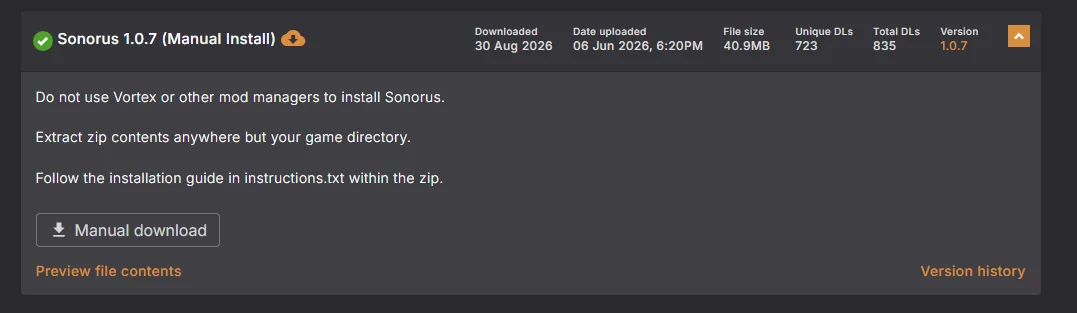
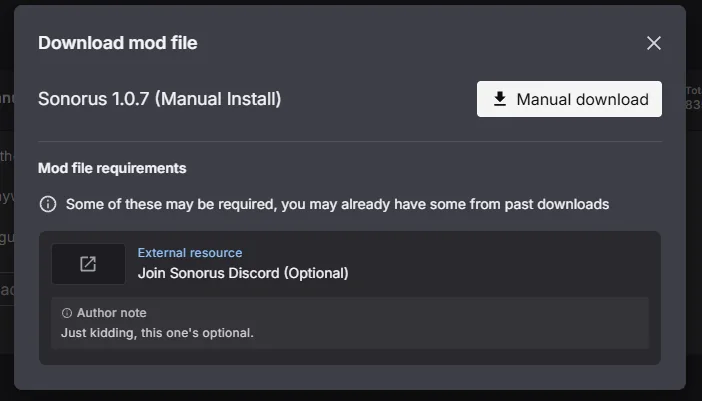
Not a mod manager install. The author says it plainly on the file page: don't use Vortex or any other mod manager for Sonorus. Manual download is the only route that works.
Extract it first
Open the download. Inside you'll find install_sonorus.bat next to a Phoenix folder, instructions.txt, the enable and uninstall scripts, and a file named do not extract into game folder!.
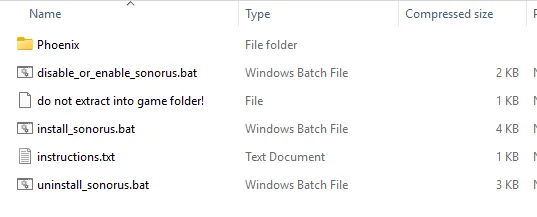
The installer has to run from an extracted folder, not from inside the zip. Either:
- Extract the folder yourself, then run
install_sonorus.batfrom the extracted copy, or - Double-click
install_sonorus.batinside the zip. Windows warns that it may depend on other files in the folder; click Extract all, then run it from the new folder.
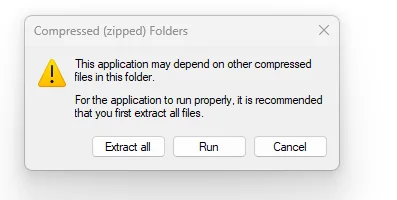
Extract it anywhere you like except your Hogwarts Legacy folder. Your Downloads folder is fine. You should end up with a plain folder like this, and that's the copy you run the installer from.
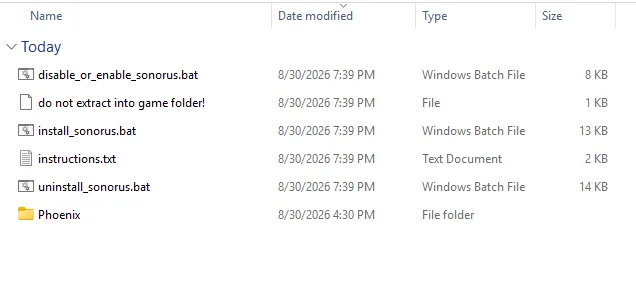
Don't extract it into your game folder. The installer copies the files into the game folder itself.
Run the installer
Run install_sonorus.bat. Windows says the publisher couldn't be verified. That's normal for an unsigned batch file, and it's safe: click Run.
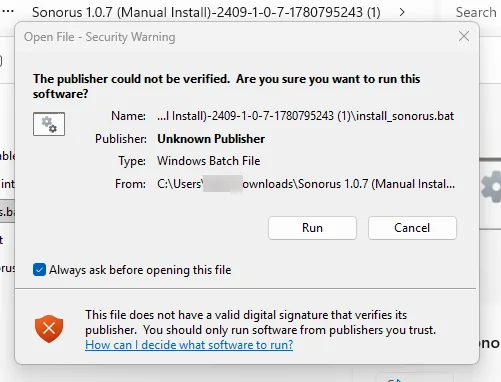
A window titled Sonorus Mod Installer opens and asks you three things:
-
Is Hogwarts Legacy closed? Close the game if it's running, then type Y and press Enter. The installer writes into the game folder and can't while the game has those files open.
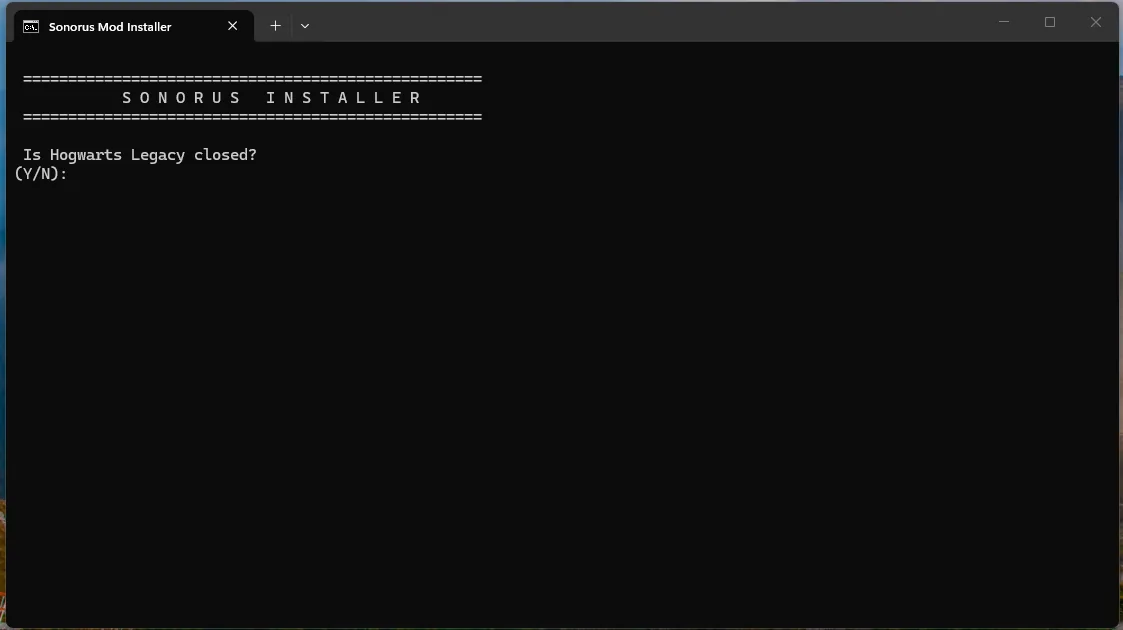
-
Select your platform. Type 1 for Steam, 2 for Epic Games, 3 for the Xbox app, or 4 to enter the path yourself. It goes looking for the game and shows you what it found.
-
Install Sonorus here? Check the path it found is your actual Hogwarts Legacy install, then type Y.
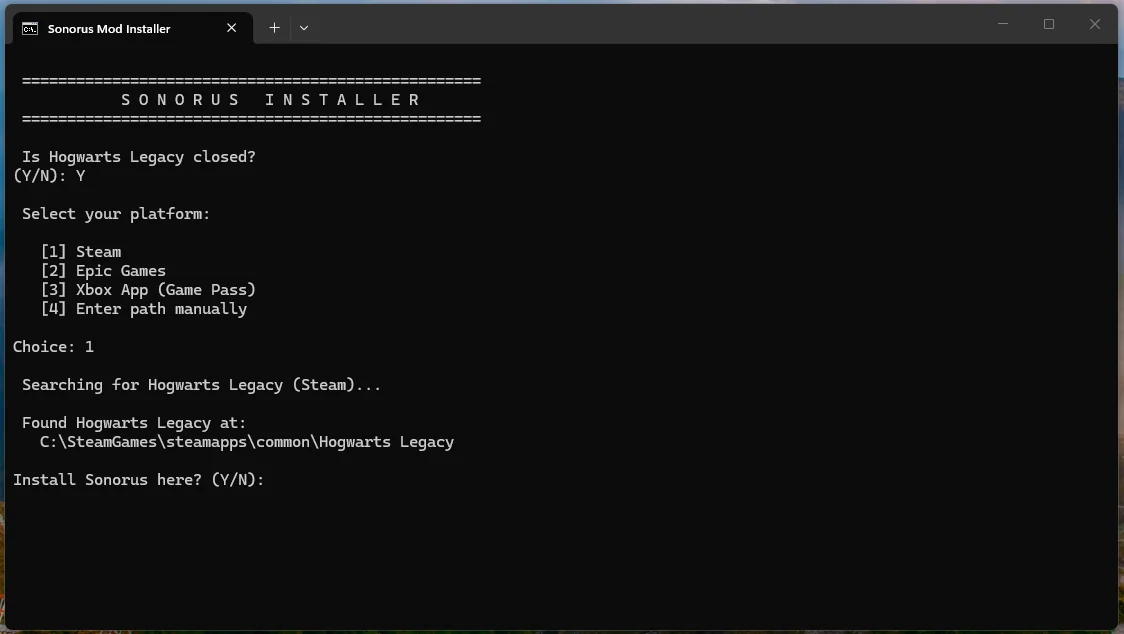
Give it ten minutes. There are several hundred files to copy, and it's normal for this to take up to ten minutes. Let it run.
You're done when you see Sonorus installed successfully. Close the installer.
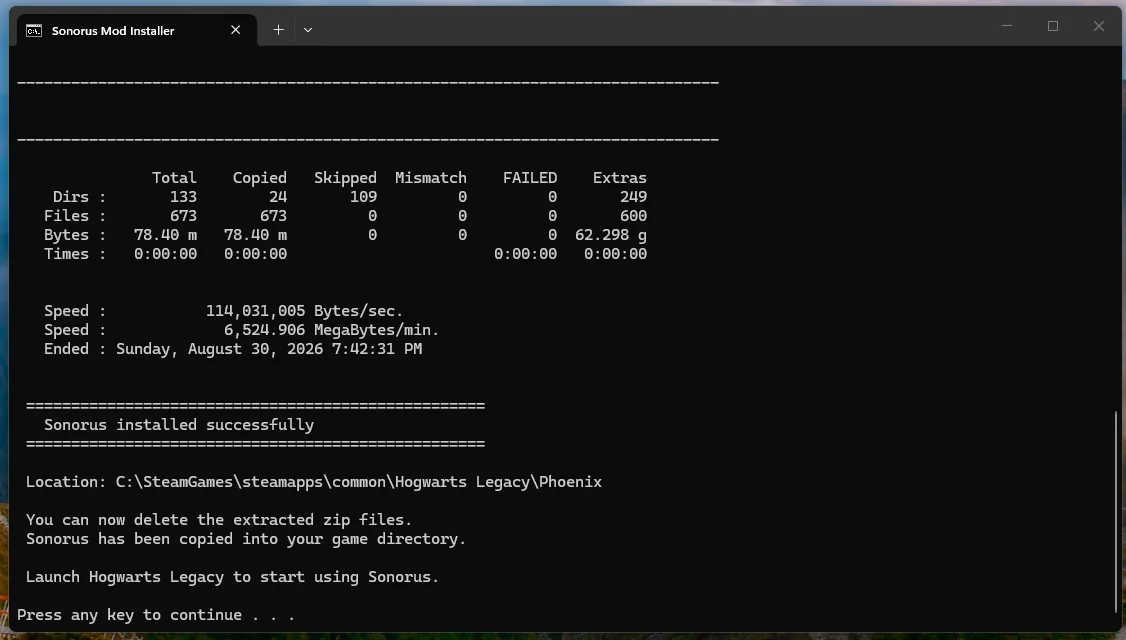
You can delete the leftovers. The extracted folder has done its job. Sonorus now lives inside your game folder.
The same installer updates it later. When a new version comes out, run the installer from the newer archive. Your memories, dialogue and settings are left alone.
Step 3
First launch
Start Hogwarts Legacy the way you normally do, from Steam, Epic or the Xbox app. There's no special launcher. Two things open alongside the game.
A console window: leave it open
The first is a black console titled SonorusServer. You never need to touch it, but it has to stay open the whole time you play. It's Sonorus itself running: close it and the AI stops working.
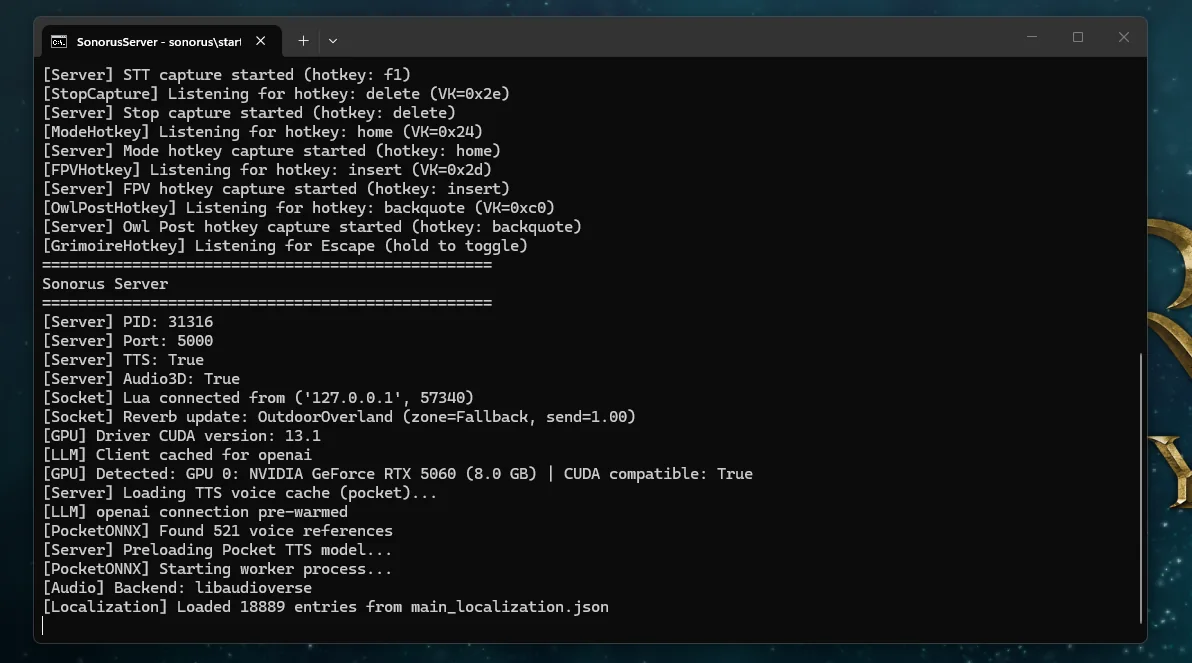
Minimize it, don't close it. The mod depends on this window being open.
A browser page: the Configuration Grimoire
The second is a browser tab called the Configuration Grimoire. It's Sonorus's settings page, and there's one setting on it you have to change before anything will work. That's the next step.
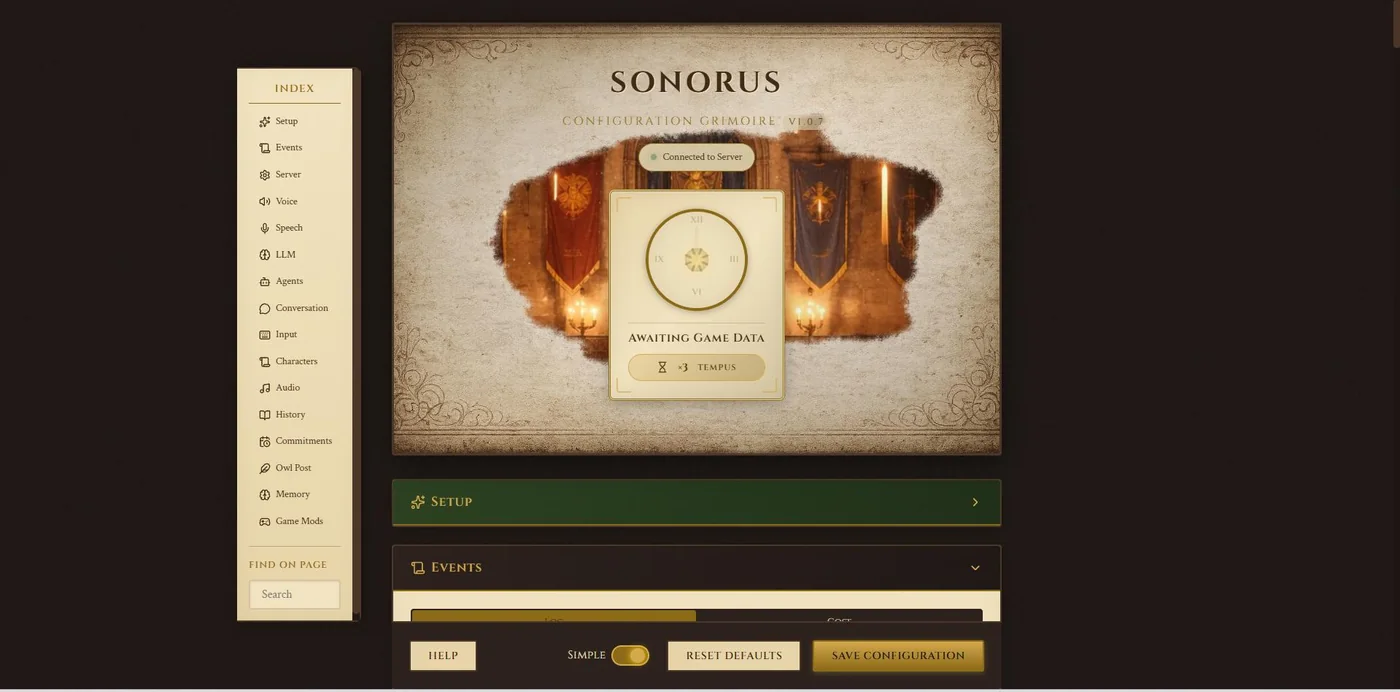
Turn subtitles on. Sonorus needs subtitles switched on in Hogwarts Legacy's own settings for chat to show up. It's the most common "it isn't working" that turns out not to be a bug.
Step 4
Connect Gaming AI
This is the most important step in the guide. It points Sonorus at Gaming AI instead of a paid cloud service. Get this right and everything after it is optional.
Set the LLM provider
In the Configuration Grimoire, click LLM in the index on the left, then fill in three things:
Provider: choose OpenAI. Not Kobold, not OpenRouter. OpenAI is the option that lets you supply your own address, and that's what you need.
API Key: type anything at all. It doesn't matter what goes here. Nothing checks this field when you're going through Gaming AI.
-
API URL: enter it exactly. Copy it rather than retyping it. A single wrong character and Sonorus can't reach Gaming AI, and the
/v1on the end is part of the address.http://127.0.0.1:57775/v1
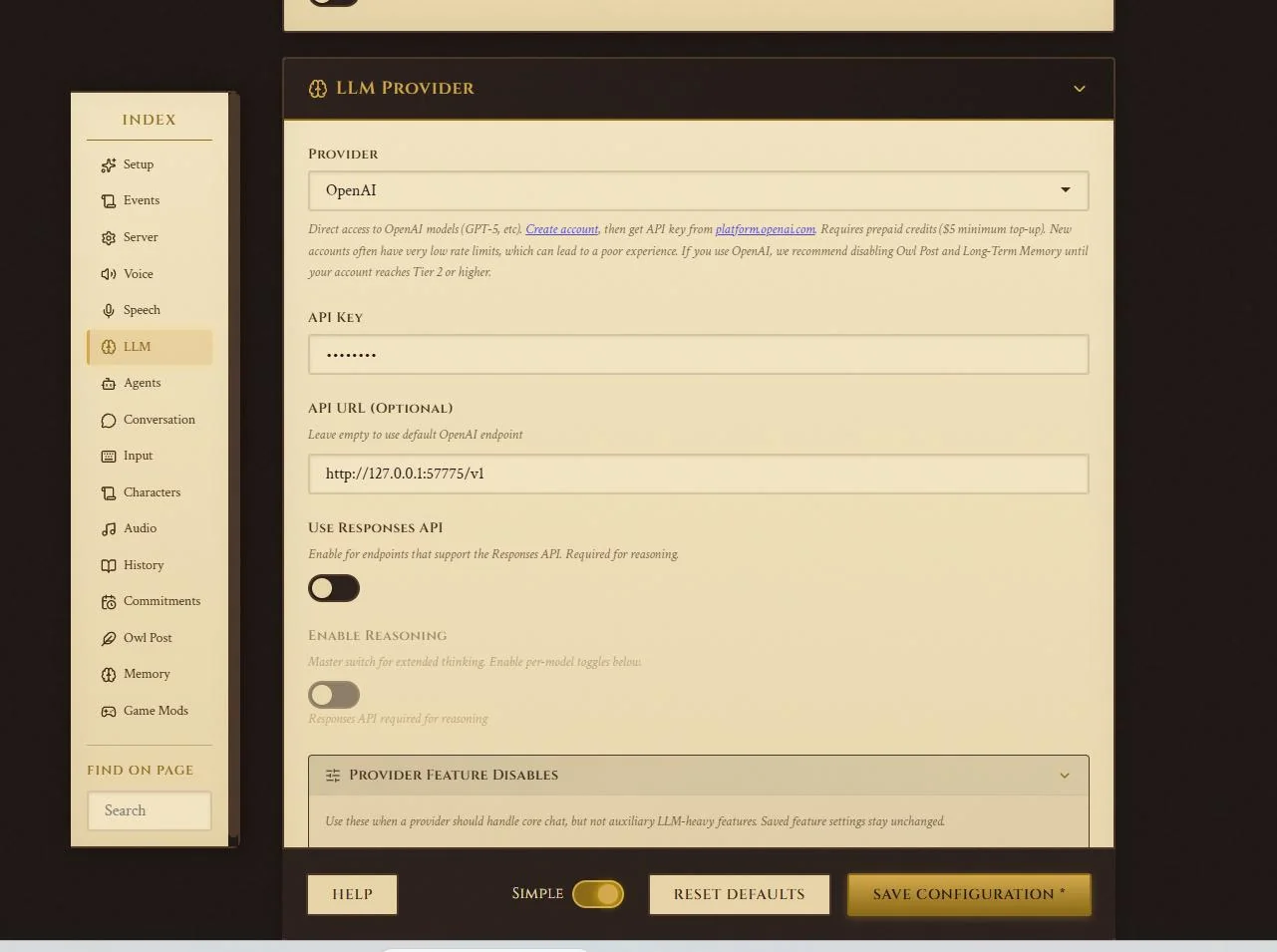

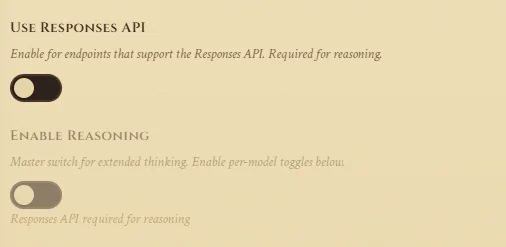
Leave the toggles below it off
Use Responses API and Enable Reasoning both stay off. If you want deep thinking, turn it on in Gaming AI's settings instead.
Save your configuration
Scroll to the bottom of the page and click Save Configuration. Nothing you've entered counts until you do.

Select the custom port in Gaming AI
Switch to Gaming AI, go to Ports, and under Custom port click Copy and use next to 57775. That's the port the address you just pasted points at. The custom port card switches to In use, and the top of the page shows 57775 as the active port, tagged Custom.
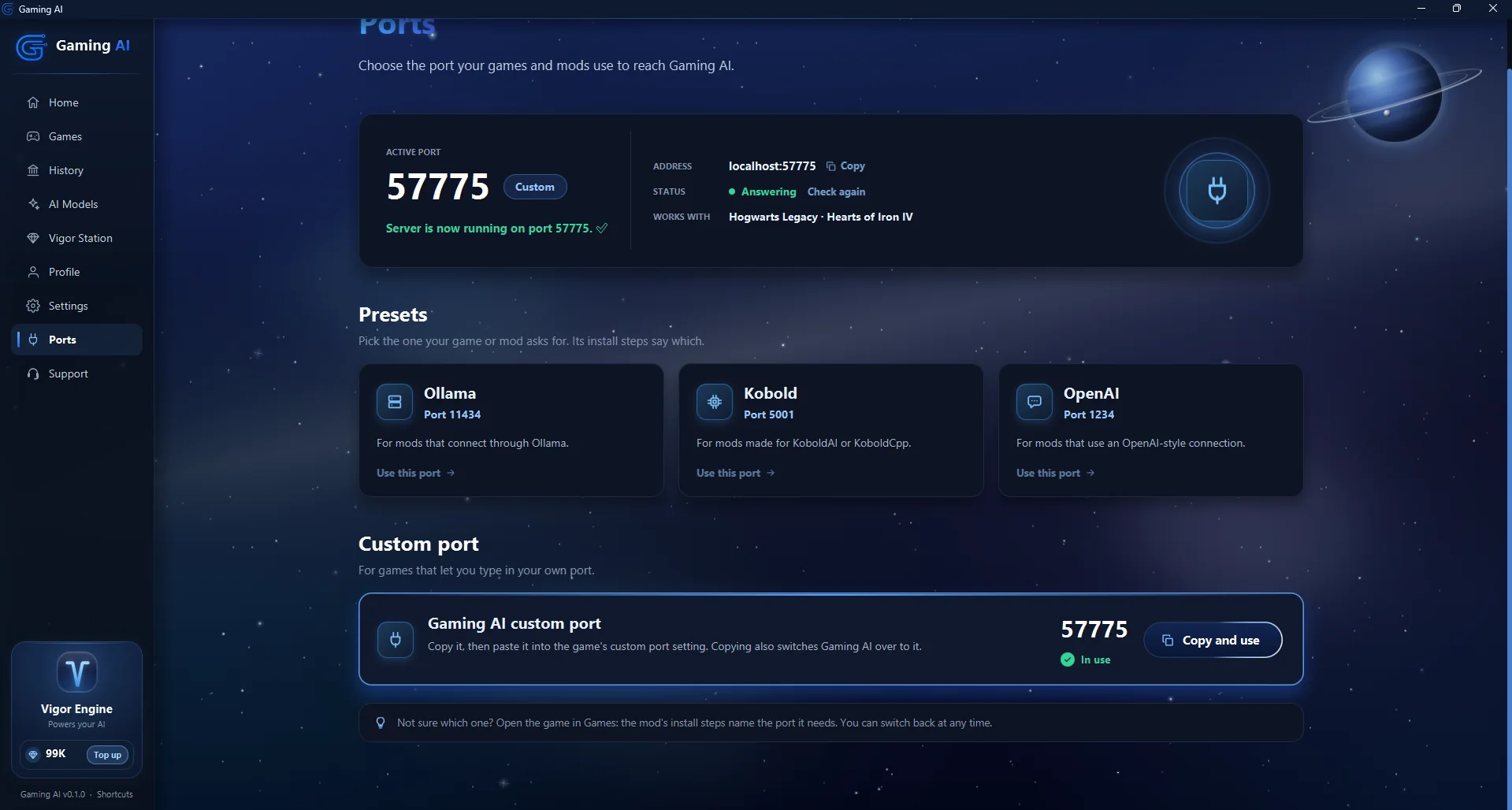
Not the OpenAI card. Gaming AI has an OpenAI preset too, on 1234. You're not using it here. Sonorus wants the custom port, 57775.
Load a model
Open the AI Models page in the sidebar and load the model you want. Start with a budget model to test your setup without spending much Vigor, then switch to a balanced model for the rest of your playthrough once everything works.
New to Gaming AI? Grab the 99¢ pack and try a few models. They behave very differently in conversation, and it's worth finding one you like before you commit to a long playthrough. Keep Gaming AI open the whole time you play.
Test it before you play
Back in the Configuration Grimoire, scroll to Setup at the very top and run both tests:
- Test TTS Configuration plays a line of speech so you know the voices work.
- Test LLM Configuration sends a message to the AI and checks it answers.
Both should come back marked Complete.
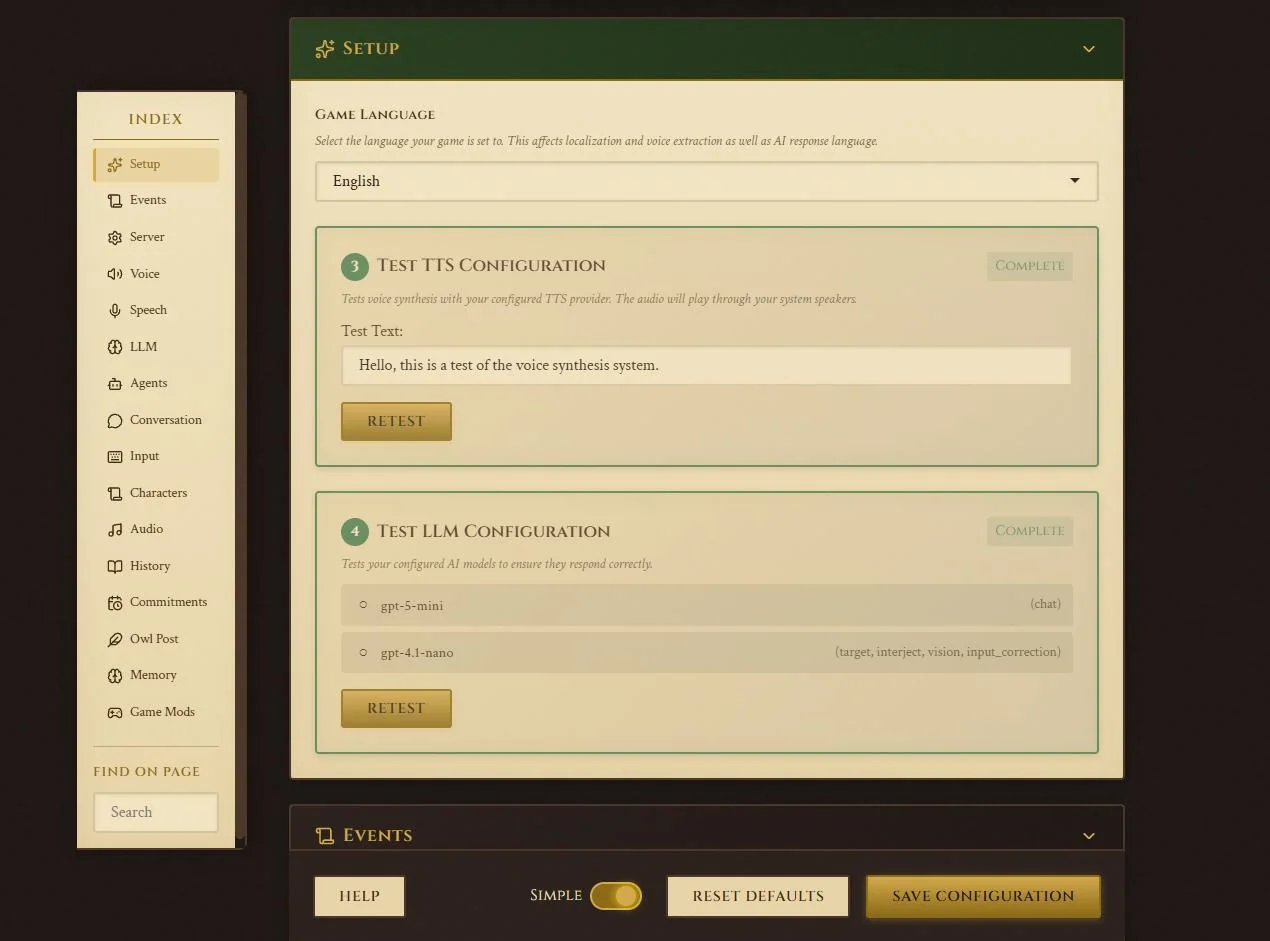
If a test fails, check the API URL character for character, check the Custom port is selected, and make sure Gaming AI is still running with a model loaded. Those account for nearly every failed test.
That's the configuration done. Everything in the next step is optional, so you can go straight to playing if you like.
Step 5 · Optional
Make it yours
None of this is required. Sonorus works well on its defaults and still feels like Hogwarts. If you want to tune it, here's what's worth knowing.
Voices
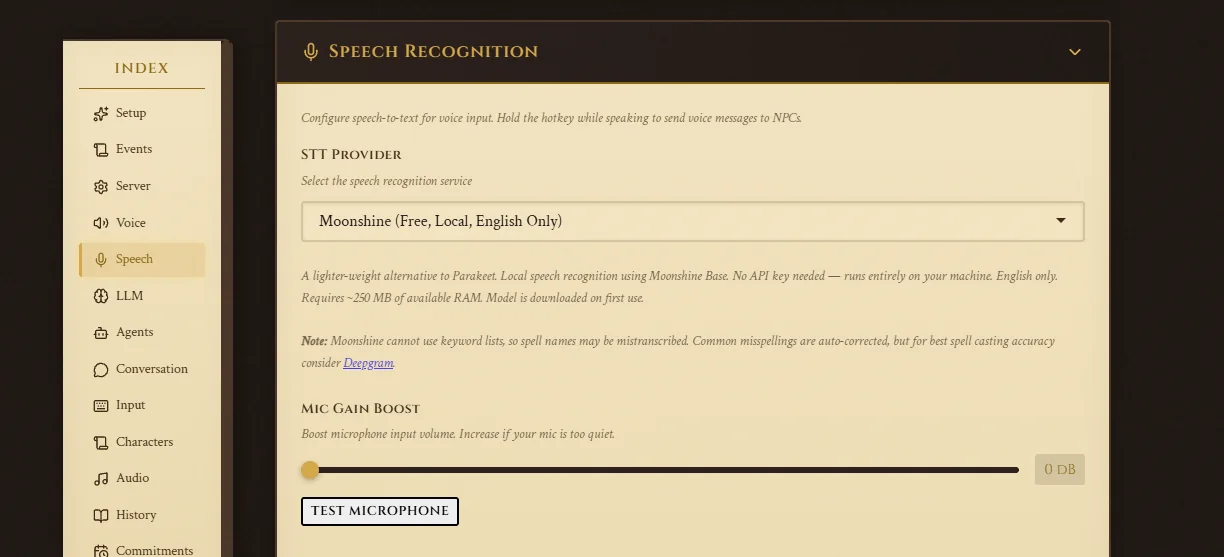
Voice Synthesis, under Voice in the index, gives the NPCs their voices. It comes set to Pocket TTS, which is free, runs on your own machine and needs no API key. Open the dropdown for the full list.
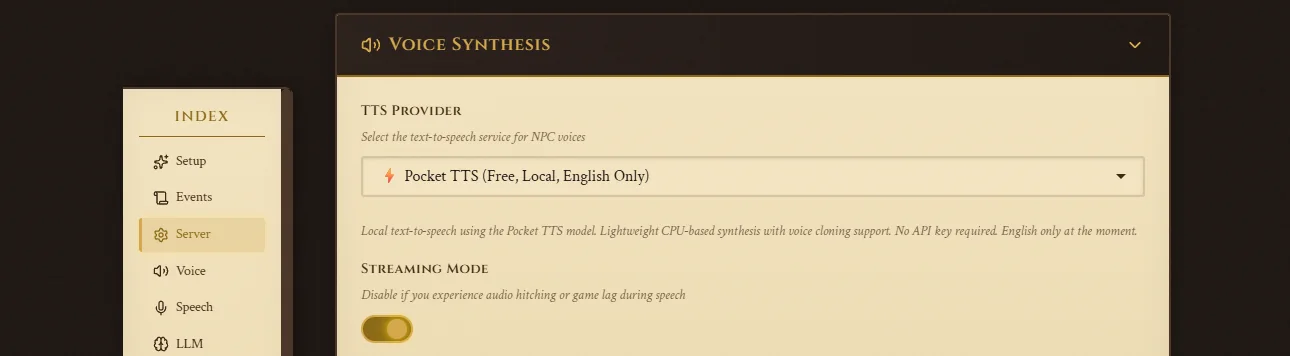
We strongly suggest keeping voices on. You can turn them off and read subtitles instead, but the voices are the best part of the mod.
Speech Recognition, under Speech, is what lets you talk to NPCs out loud instead of typing. Pick from the dropdown the same way. There's a Test Microphone button to check it can hear you, and a gain slider if your mic is quiet.
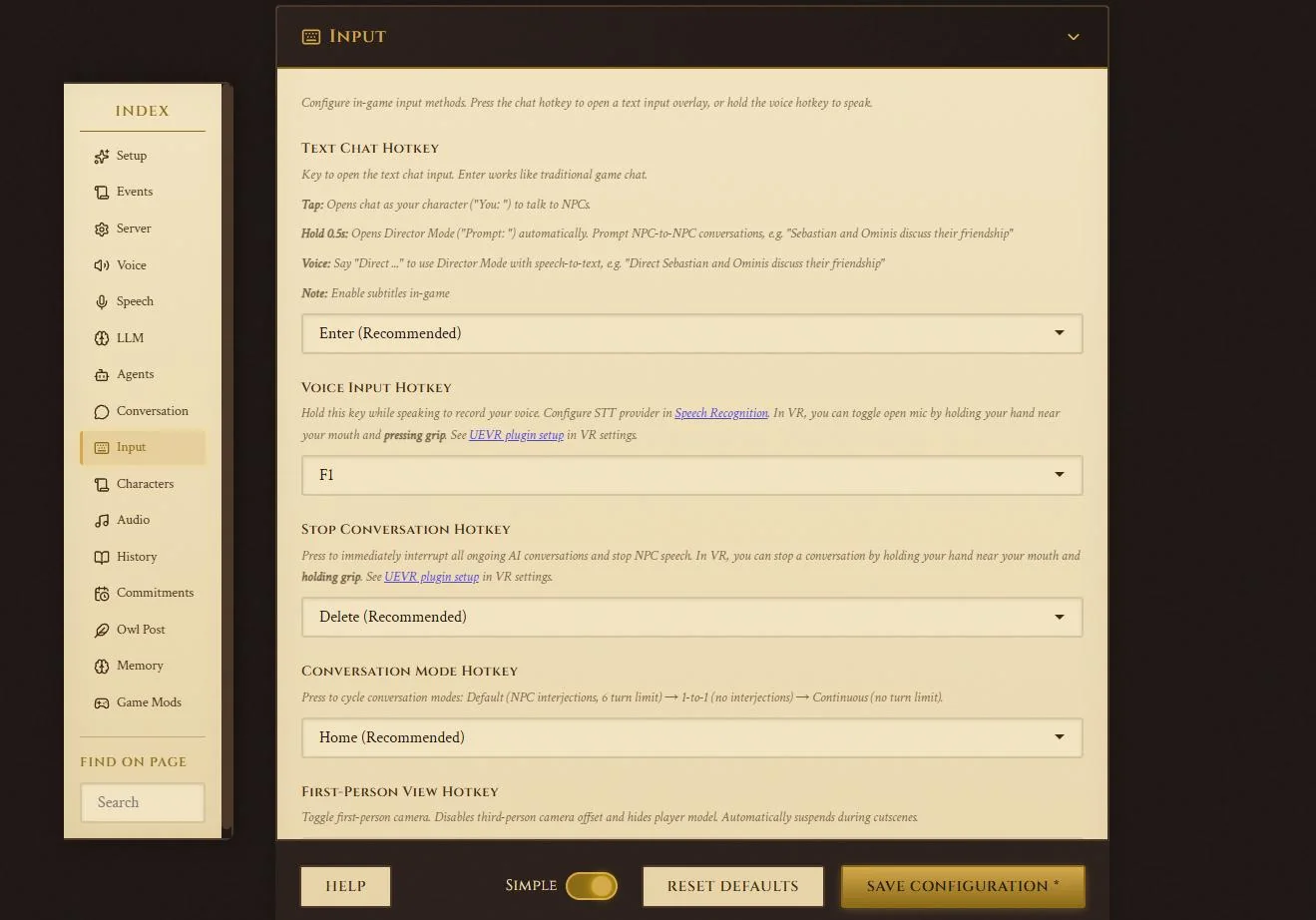
Hotkeys
Every key can be changed under Input. The defaults are sensible, so most people leave them.
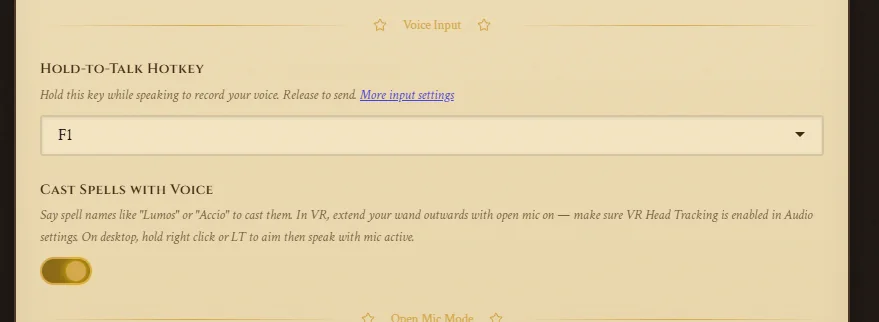
Under Voice you'll also find the hold-to-talk key and the option to cast spells by saying their names: Lumos, Accio and the rest.
Characters and lore
Under Characters you can edit the prompt every NPC shares, add world lore they all know, and write bios for your own character or individual NPCs.
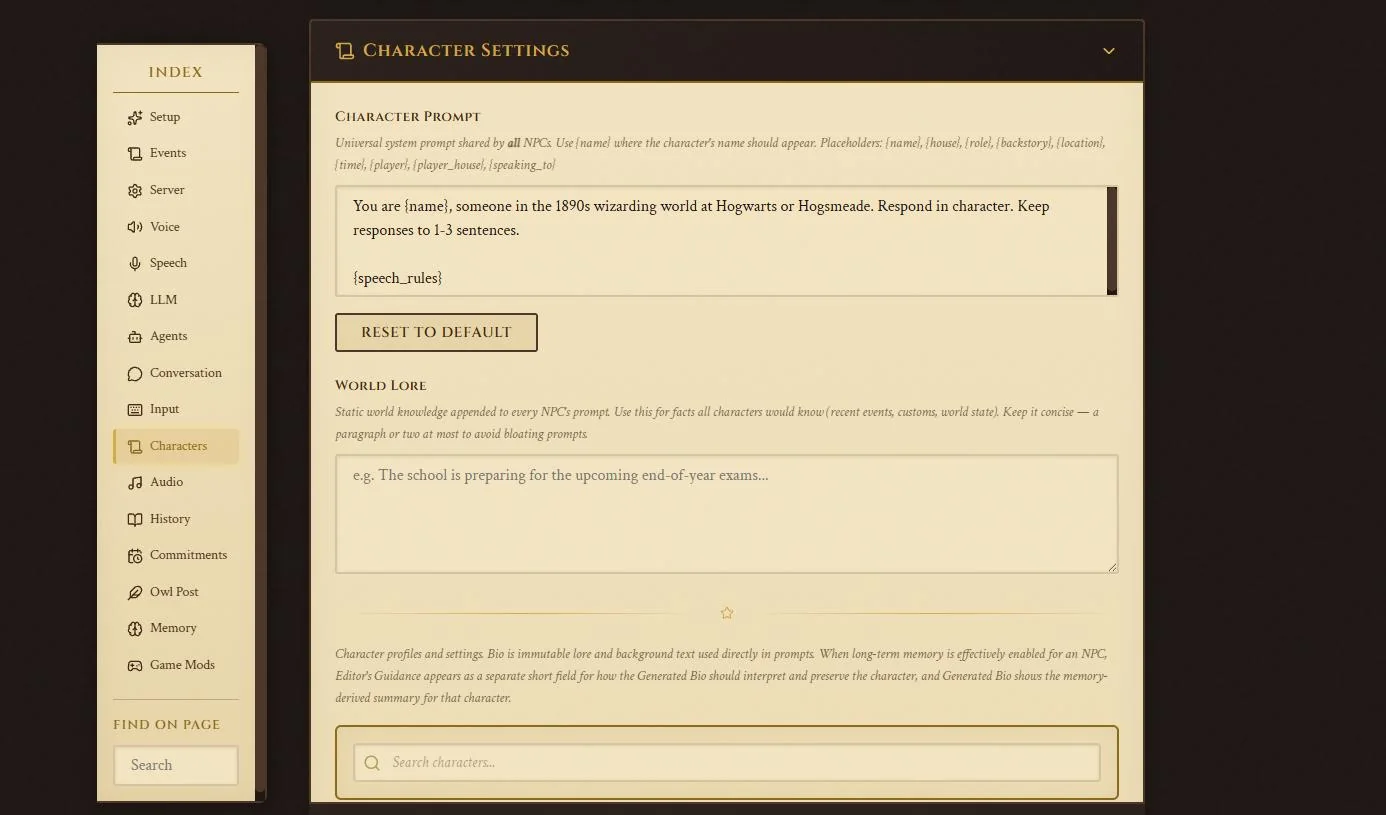
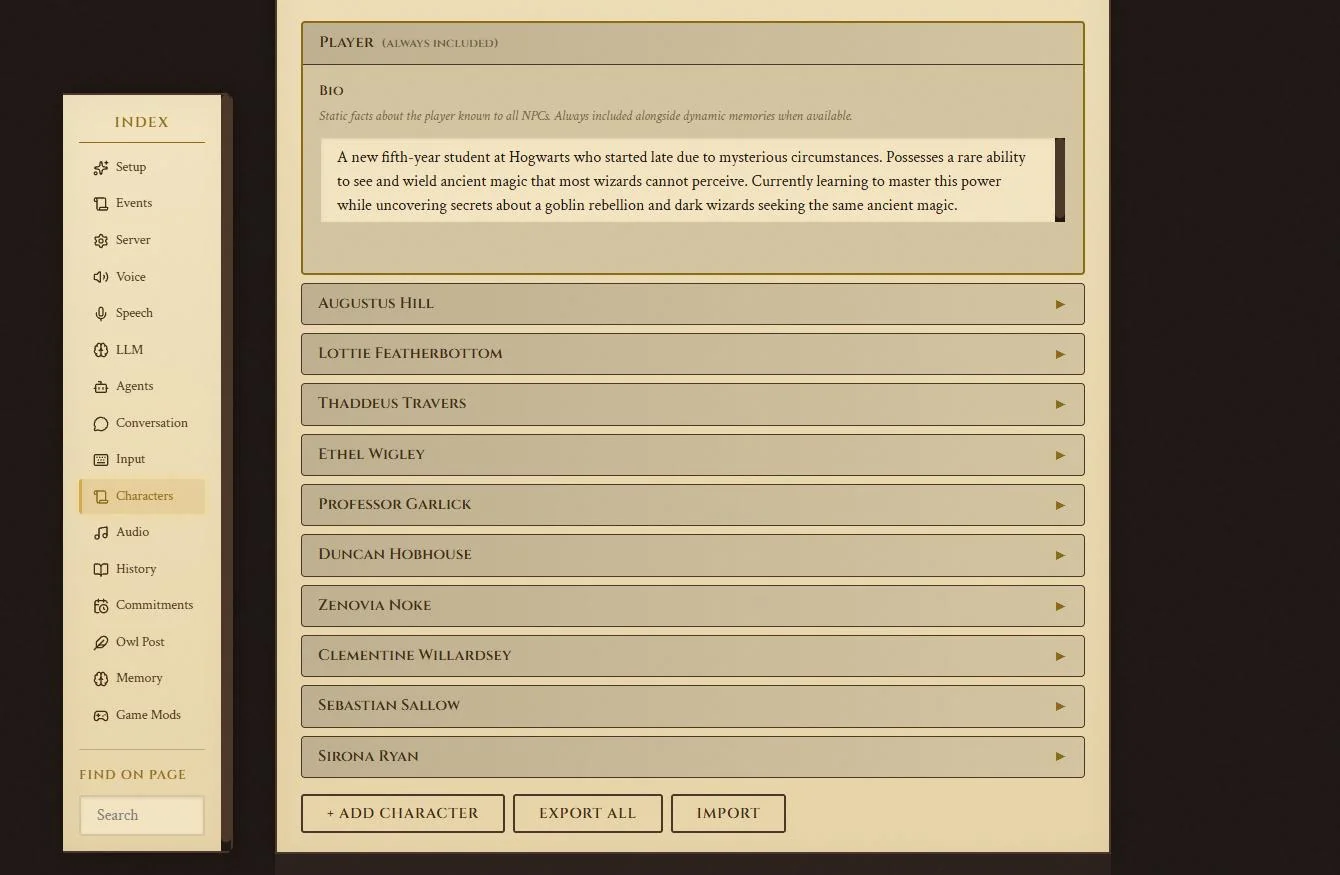
This costs a little more Vigor. Anything you add here goes along with every prompt, so each exchange costs slightly more. Leaving it as it comes is completely fine; it's here for when you've played a while and want the dialogue closer to what you expect.
Features you can switch off
Owl Post is a good example: NPCs write you letters and post on notice boards between conversations. It's on by default. You can turn it off, or turn off just the notice boards and keep the mail.
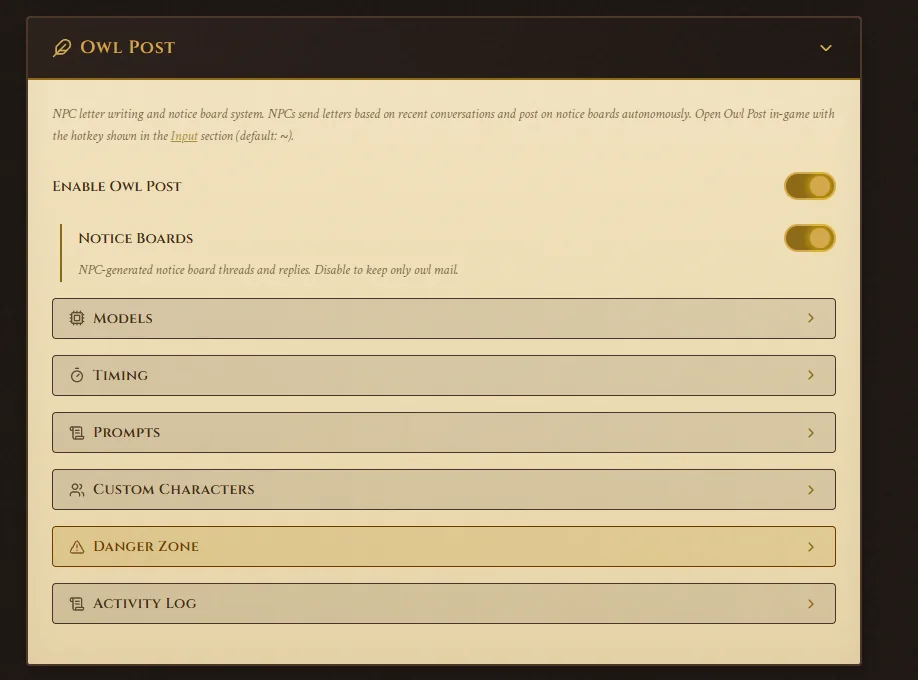
Remember to click Save Configuration after any change.
Step 6
Play
Leave Gaming AI running, leave the SonorusServer window open, and play through the intro as normal. Once you've been sorted into your house, you can talk to any named character in the game.
That's everything
Go find a professor and ask them something the script never planned for. We hope the guide was easy to follow, and that you have fun at Hogwarts.
Setting up another game? See all setup guides.
Troubleshooting
The problems people hit most, and what fixes them.
Test LLM Configuration fails. What's wrong?
Check the API URL character for character: it has to be http://127.0.0.1:57775/v1, including the /v1. Then check that Gaming AI is running with a model loaded and the custom port, 57775, in use on its Ports page (click Copy and use under Custom port), and that you clicked Save Configuration.
Nothing shows up when I talk to someone.
Turn on subtitles in Hogwarts Legacy's own settings. Sonorus needs them for chat to appear. It's the most common problem that turns out not to be a bug.
NPCs stopped answering partway through.
The SonorusServer console window is Sonorus itself running. If it was closed, the AI stops working. Restart the game so it opens again, and keep Gaming AI open with a model loaded.
Can I install Sonorus with Vortex or another mod manager?
No. The author says not to. Use Manual download on Nexus and run install_sonorus.bat from an extracted folder.
The installer can't find my game.
Run it again and choose option 4 to enter the path yourself. Point it at the folder Hogwarts Legacy is installed in, the one that contains the Phoenix folder.
How do I update Sonorus?
Download the newer Manual Install archive and run its installer the same way. Your memories, dialogue and settings are left alone.
Will my other Hogwarts Legacy mods work?
Most will. Ultra Plus, ReShade, UEVR, Floo Companion Mod, Stand Up Straight, House Points Mod and both NPC schedule mods have been tested. Time Dilator Mod and the Immersive NPC ModPack are incompatible. Avoid installing UE4SS twice: if another mod includes it, install that mod into ue4ss/Mods after Sonorus.
Do custom characters and lore cost more?
Slightly. Anything you add under Characters goes along with every prompt, so each exchange costs a little more Vigor. The defaults work well if you'd rather not add anything.
Which AI model should I use?
Start with a budget model to check everything works, then switch to a balanced model for your playthrough. Models behave very differently in conversation, so it's worth trying a few with the 99¢ pack.
Still stuck?
Supporters get hands-on help: we'll work through mod conflicts and broken downloads with you, one to one. Not a supporter? Write to us anyway if anything in this guide looks outdated or broken.
Thanks to KevinAHM, who makes Sonorus. If it makes the castle feel alive, endorse it on its Nexus page.
Gaming AI is an independent service and is not affiliated with, endorsed by or connected to Warner Bros. Games, Avalanche Software or any mod author. Sonorus is made and maintained by a third party. Game and mod names are the trademarks of their respective owners and are used here only to describe compatibility.